

Login & Administration
1. Log In
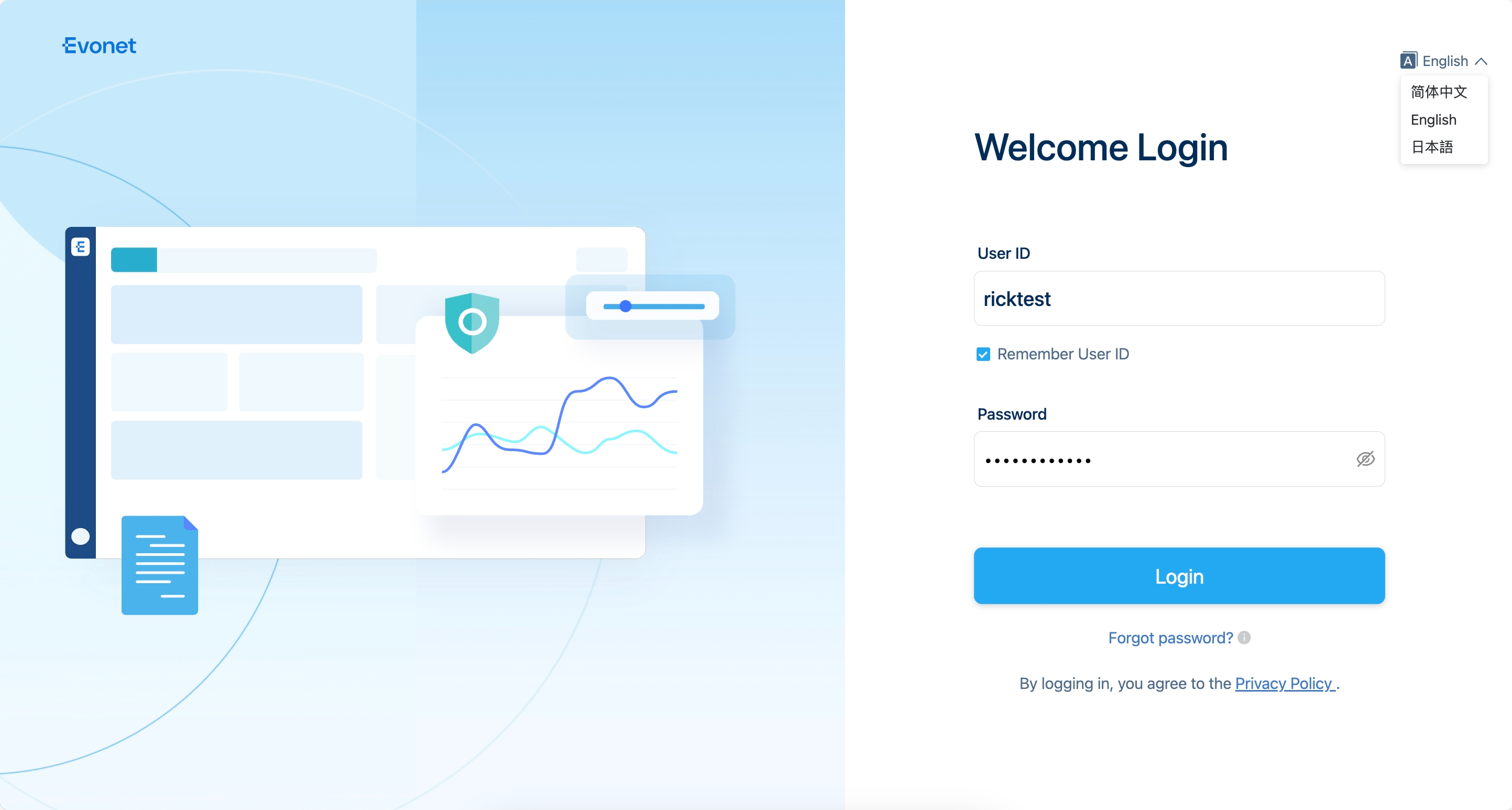
Before your first login, make sure you have obtained your User ID and Password from your Evonet account manager.
You will be required to change your password after the first login.
- Forgot Password → In Login Page to reset your password
- Incorrect password 6 times → Account will be locked for 30 minutes
- Auto logout → The system will log out automatically after 15 minutes of inactivity
Language setting: On the login page, you can change the display language. The default is English.
2. My Profile
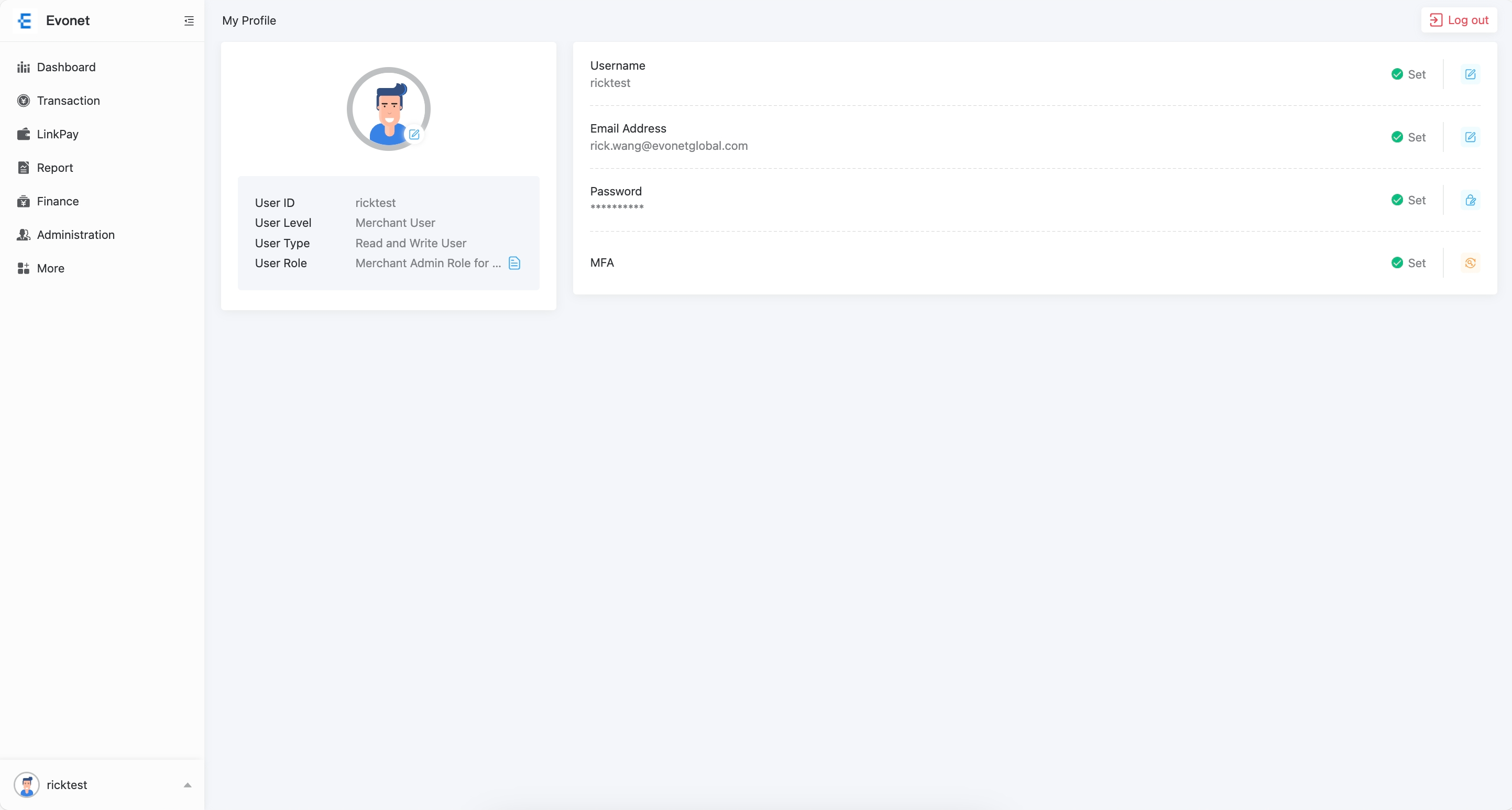
Click the avatar in the portal to access your profile and personal information.
Basic Information Includes
You can access your user information/personal information by clicking the avatar on the portal.
Basic user information includes User ID, User Level, User Type, User Role, Username, Email Address, Password, and Color Scheme.
Multi-Factor Authentication (MFA)
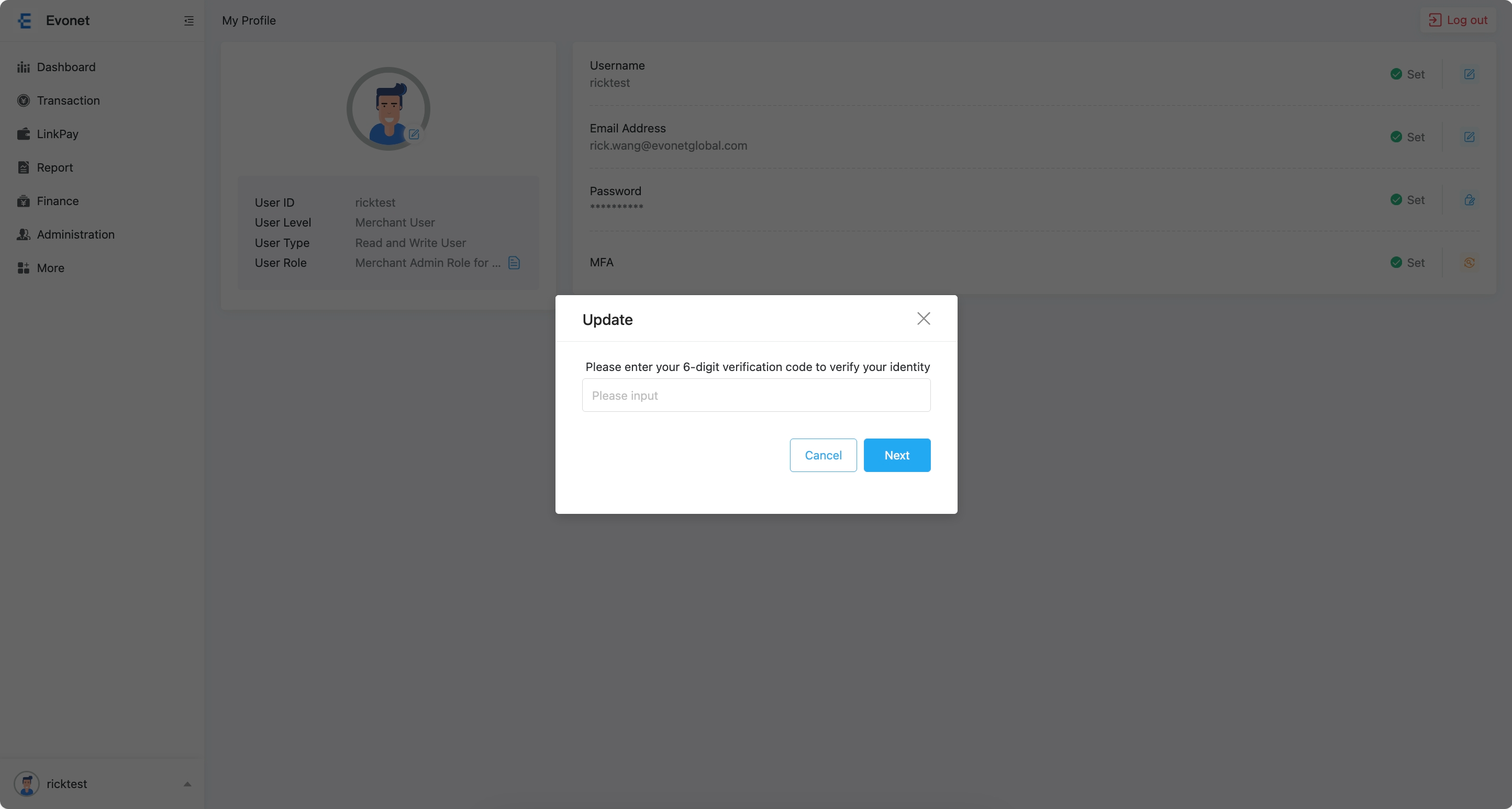
If MFA is enabled, you can change your authentication device by clicking the Update button.
Enter the authentication code from your current device and then use the new device to scan the replacing MFA QR Code.
3. Administration:
User List
In User List, you can review the registered user information.
You can only review lower-level user information according to your user level (Level: Group > Merchant > Store). For example, a merchant user cannot review acquirer and group user information.
The Status of a user includes Active and Inactive. Once the user logs in for the first time, the status will turn to Active.
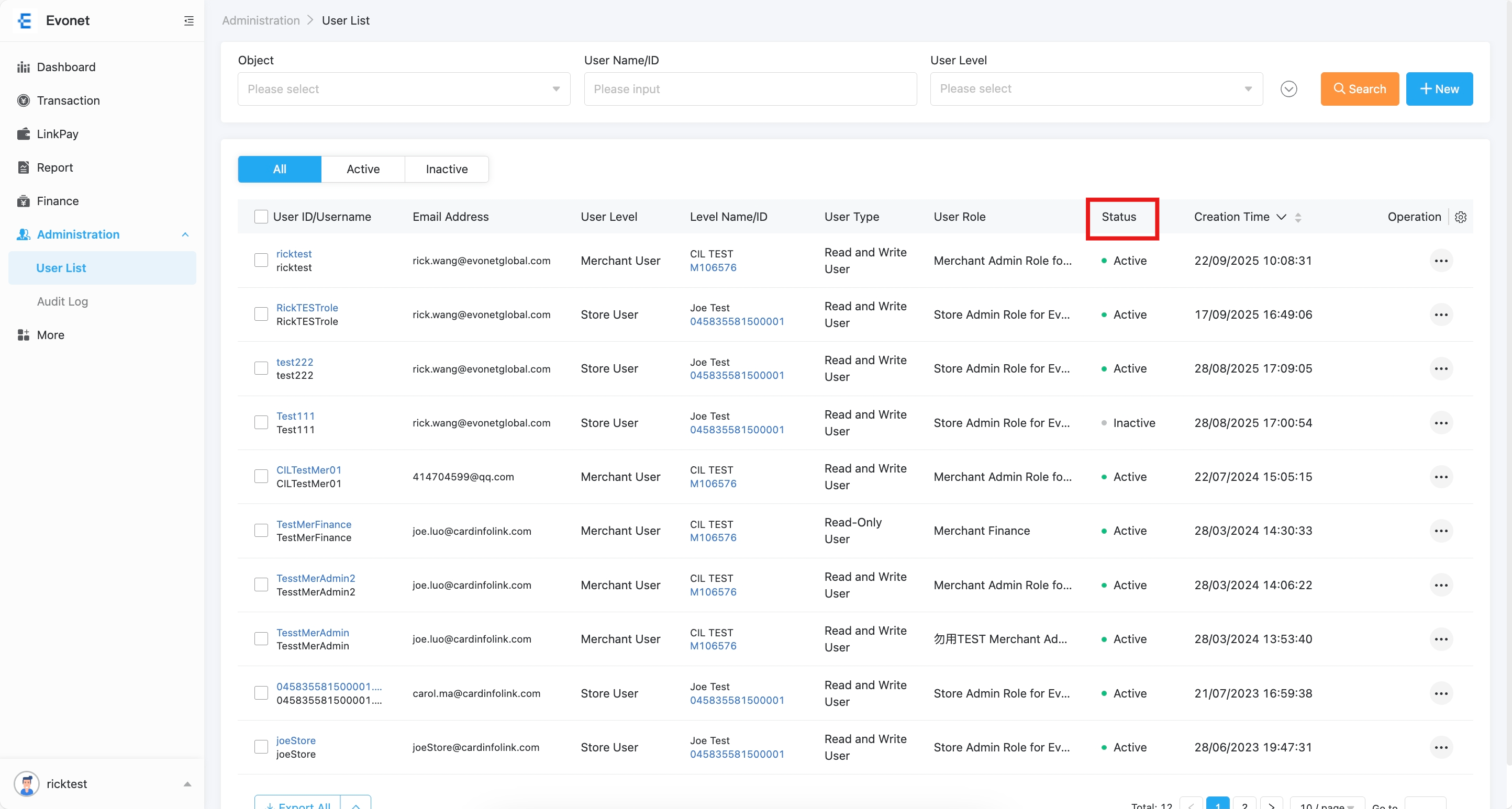
You can also create a new user by clicking the New button. User types include Group User, Merchant User, and Store User. You can create different types of users depending on business needs.
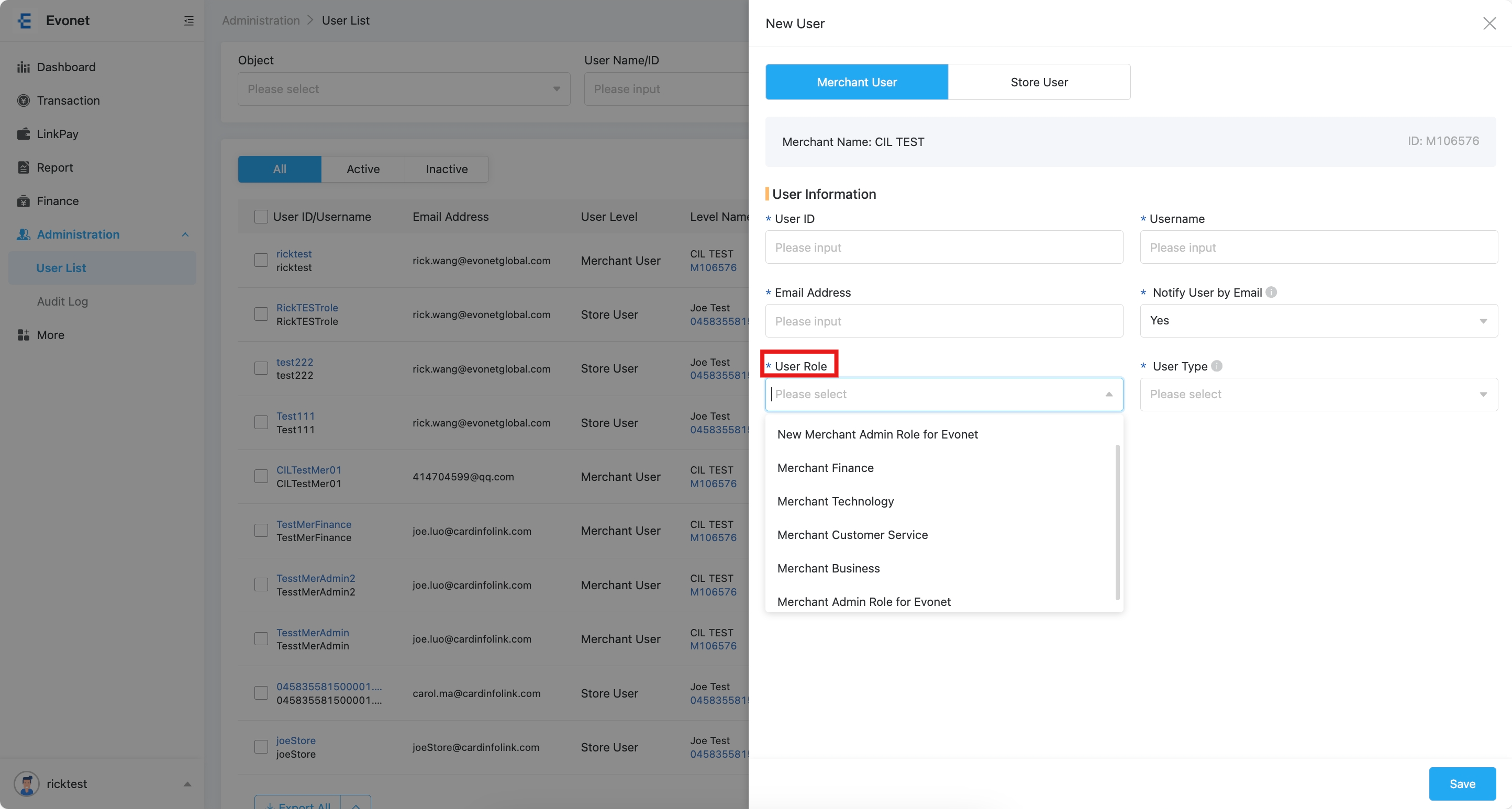
If you enable Email Notification while adding portal users, the system will send an email to the address specified in the user information. The email contains a password reset link, and the user must reset their password for the first login.
Operations available in User List include View Details, Copy User, Reset Password, Reset MFA, Deactivate, and Delete User.
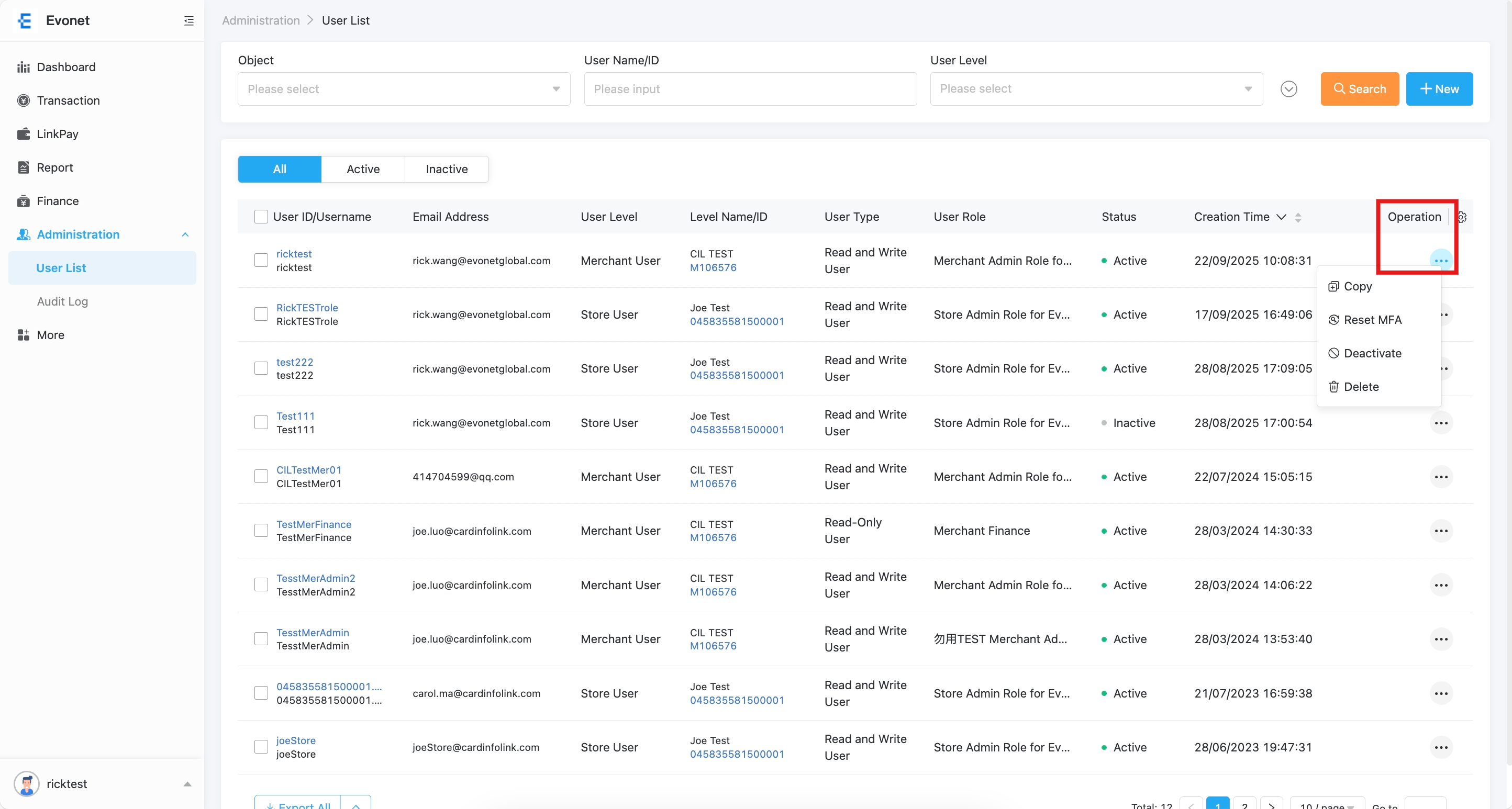
- Click User ID/Username to review user information such as User ID, Username, Email, User Level, User Role, and User Type.
- Click Edit to modify user information.
Audit Log
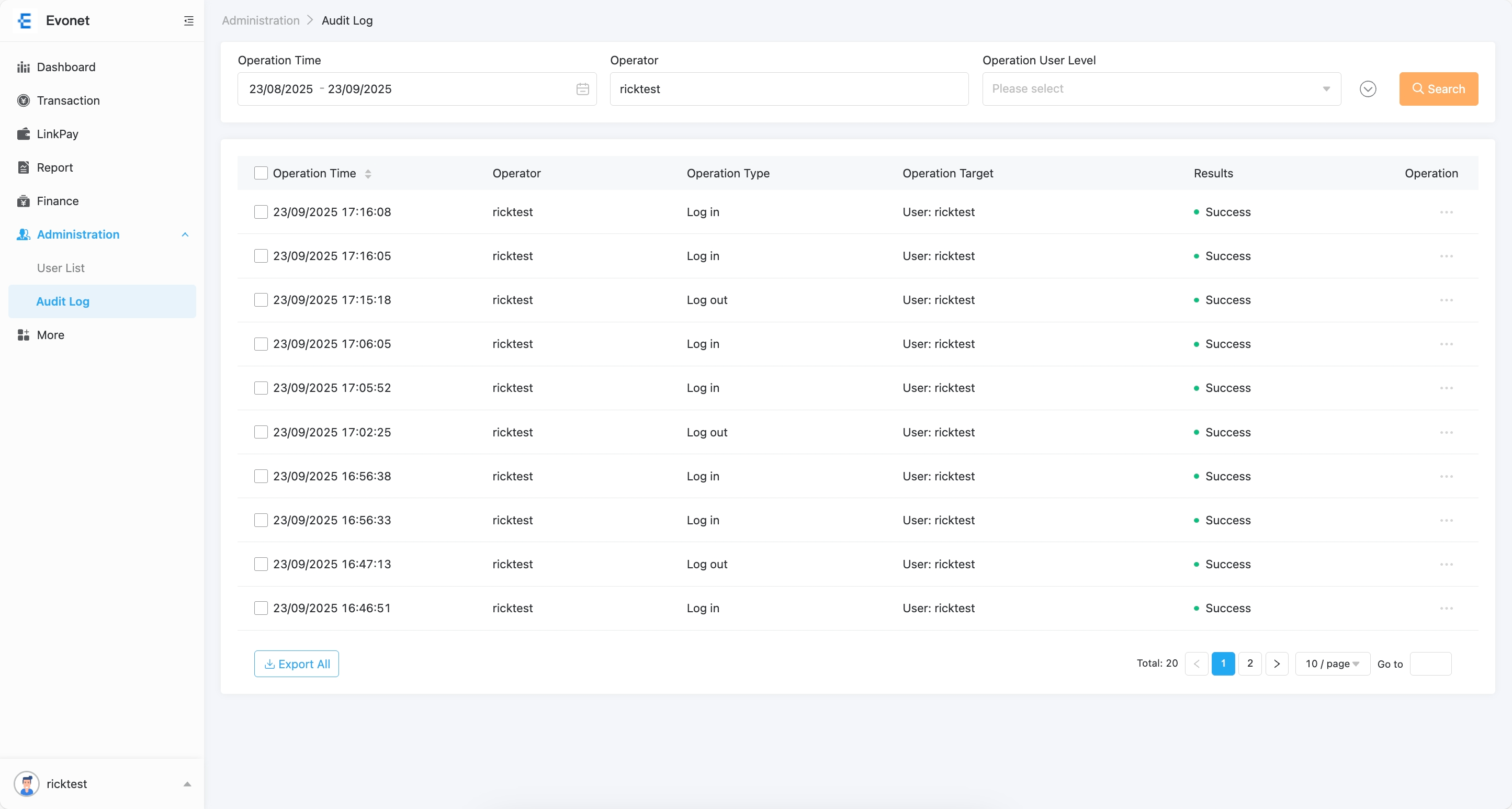
The Evonet system records all operations performed on the portal.
Each operation record includes:
Operation Time, Operator, Operation Type, Operation Target, and Results.
You can filter the operation list by selecting conditions in the search bar.
The Operation Target will automatically match the selected Operation Type.
Updated 8 months ago