

Transaction Management
Transaction
The Transaction section includes three parts: Payment, Transaction Statistics.
- In Payment, you can view transaction details and download transaction records.
- In Transaction Statistics, you can perform statistics on the overall situation of transactions according to selected conditions.
Payment View
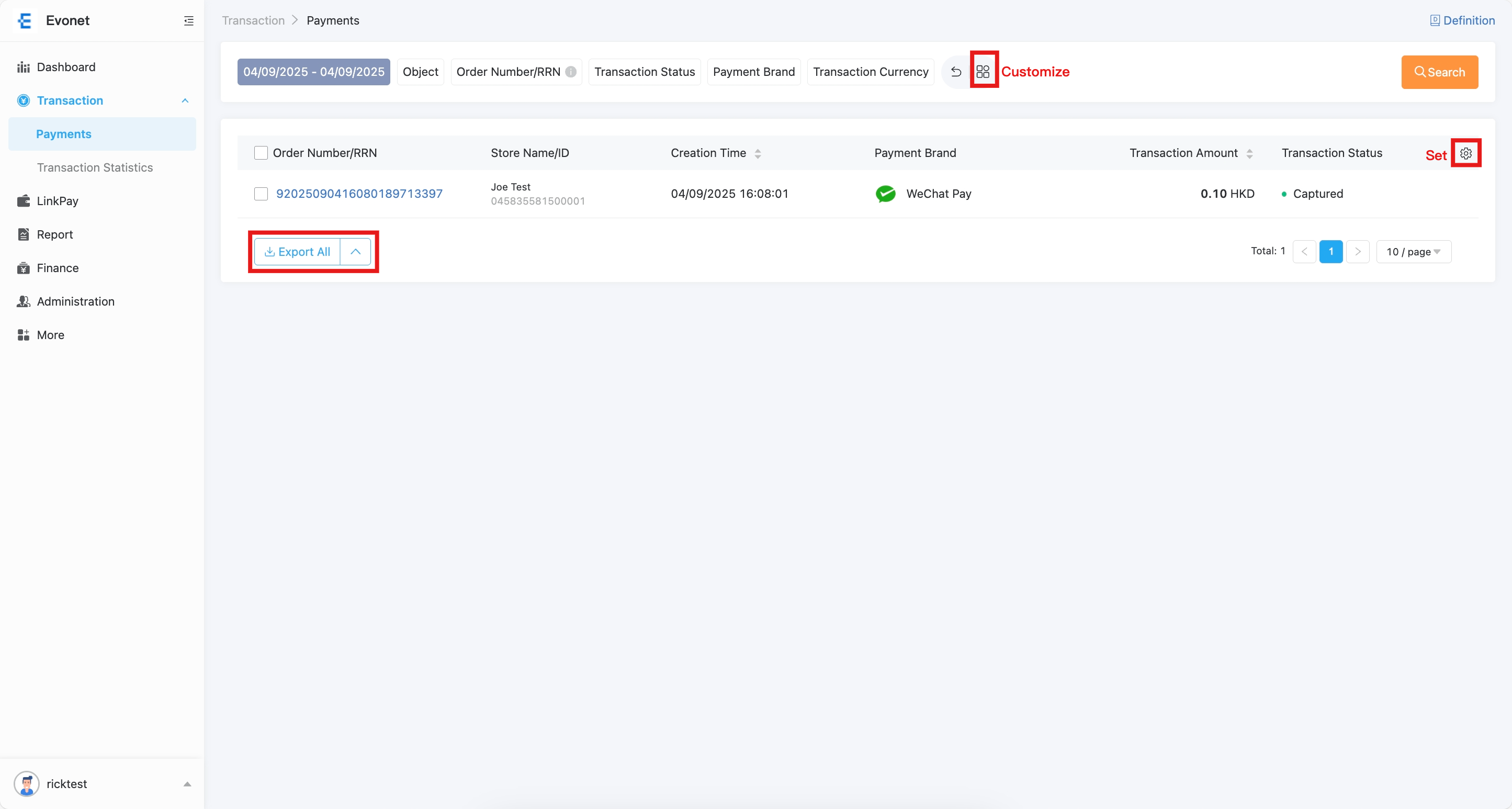
On the Payment page, you can search transactions and view details.
- Click Search to find transactions based on selected conditions. Multiple fields can be combined.
- Click the Customize button to choose up to 10 conditions.
- Click Save to keep your selection; the saved conditions will be displayed automatically each time you open the Payment Page.
- Click the Set button to define which columns are shown.
- Click the Order Number/RRNto view full transaction details.
- After search results are displayed, an Export All button will appear on the Payment Page. Click it to export the current transaction list.
Transaction Statistics
On the Transaction Statistics page, you can view transaction summaries by selected conditions.
Available search conditions include:
Transaction Date Range, Statistical Level, Object, Transaction Currency, and Payment Brand.
- Click the Payment Brand button to filter data by payment brand.
- Results will be displayed in the Transaction Statistics List Page.
- Click Export to download the statistics list as an
.xlsxfile or.csvfile. - Use the Set button to select which items to display in the header. The exported file will follow the customized header.
Manage Transaction
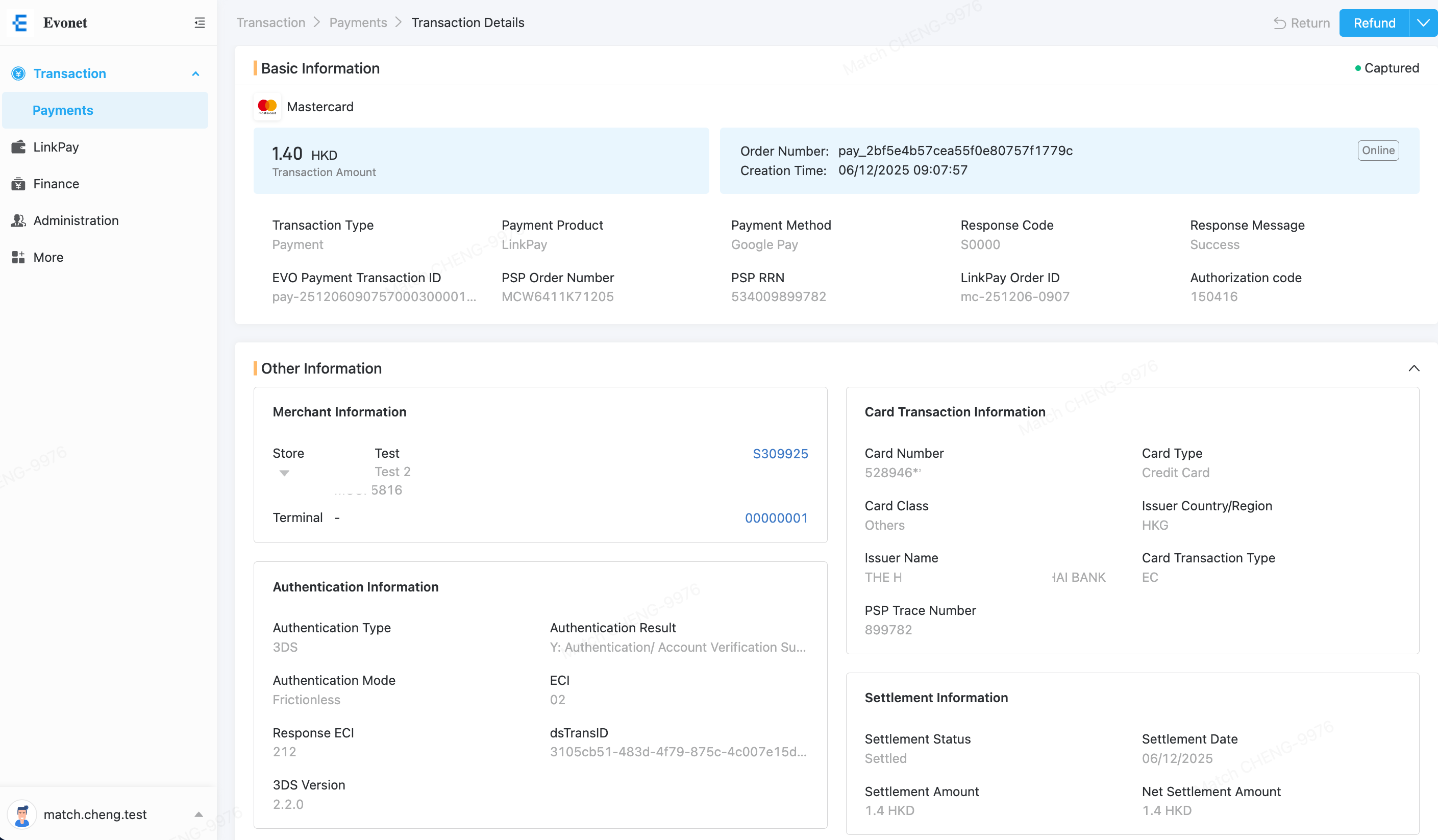
Transaction Details
If you click on any particular transaction, the detail of the transaction will be shown as below. Key information include the Payment Method, Amount, Transaction Date time, various payment ID, Payment Type, Payment Product and Authentication result.
Transaction Refund
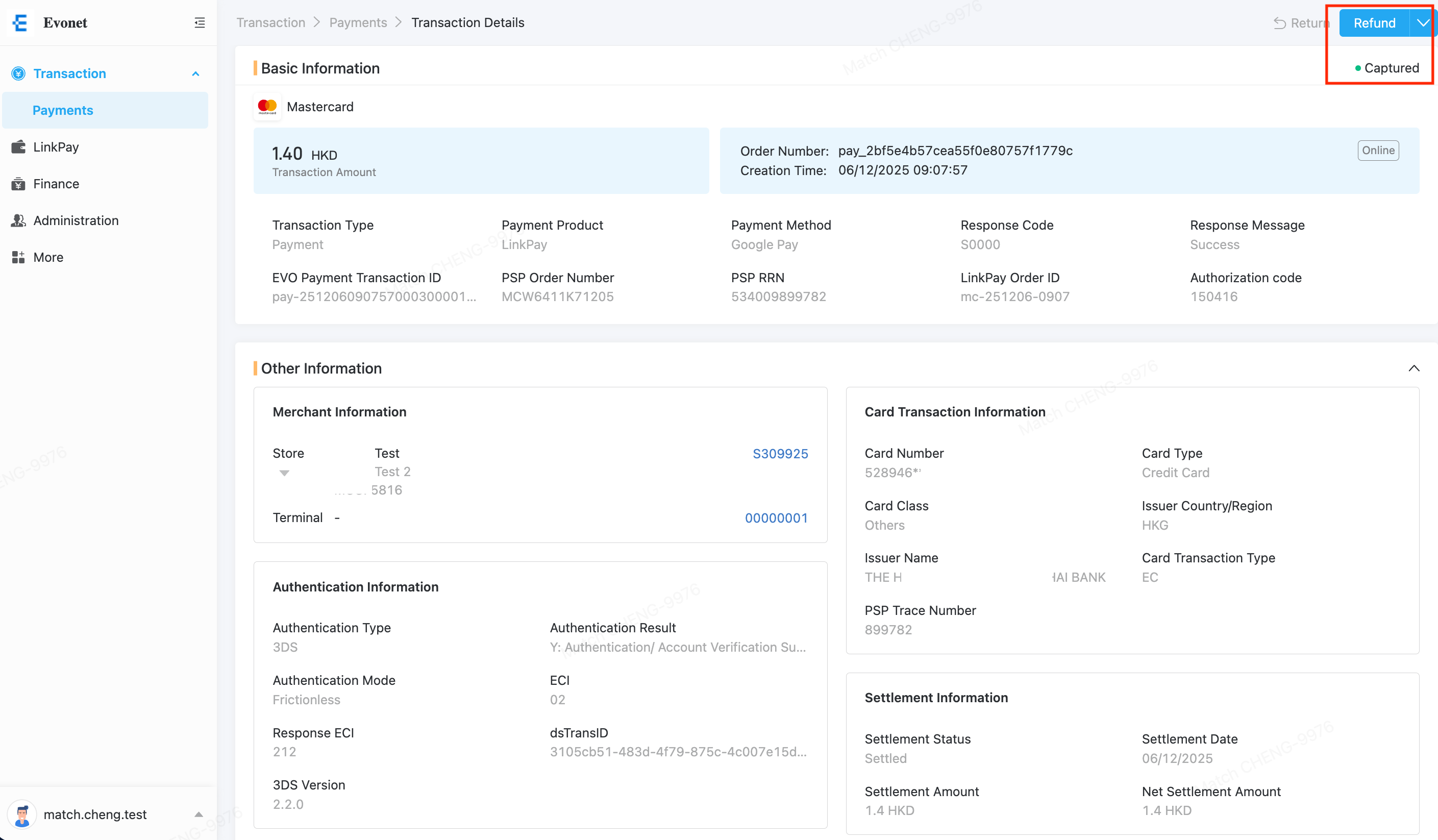
It is possible to refund a Captured transaction via the button at the top right hand corner (It requires Write access of the transaction management of the user).
Transaction Capture or Cancel (Void)
If a transaction is only Authorised, it is possible to Capture or Cancel (Void) a transaction within the allowable period. To Capture or Cancel a transaction via the Portal or API.
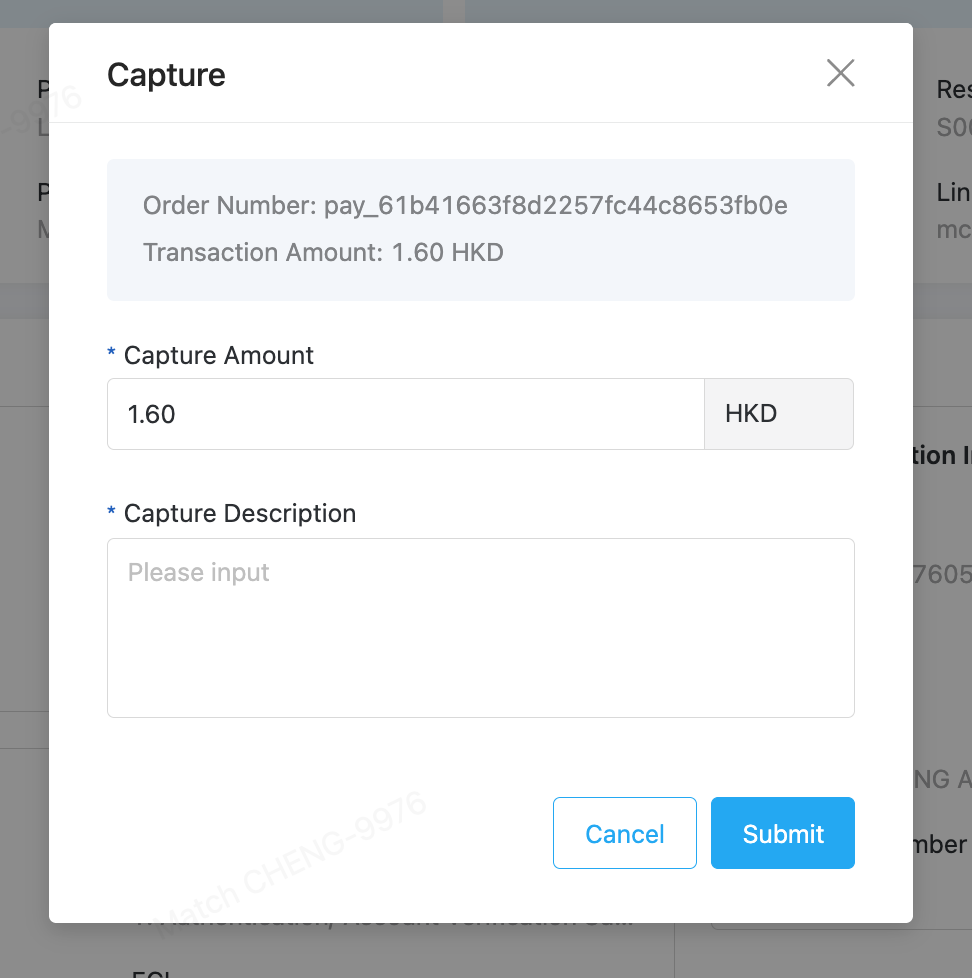
To Capture an Authorised transaction at the Portal, click the Capture button at the top-right hand corner.
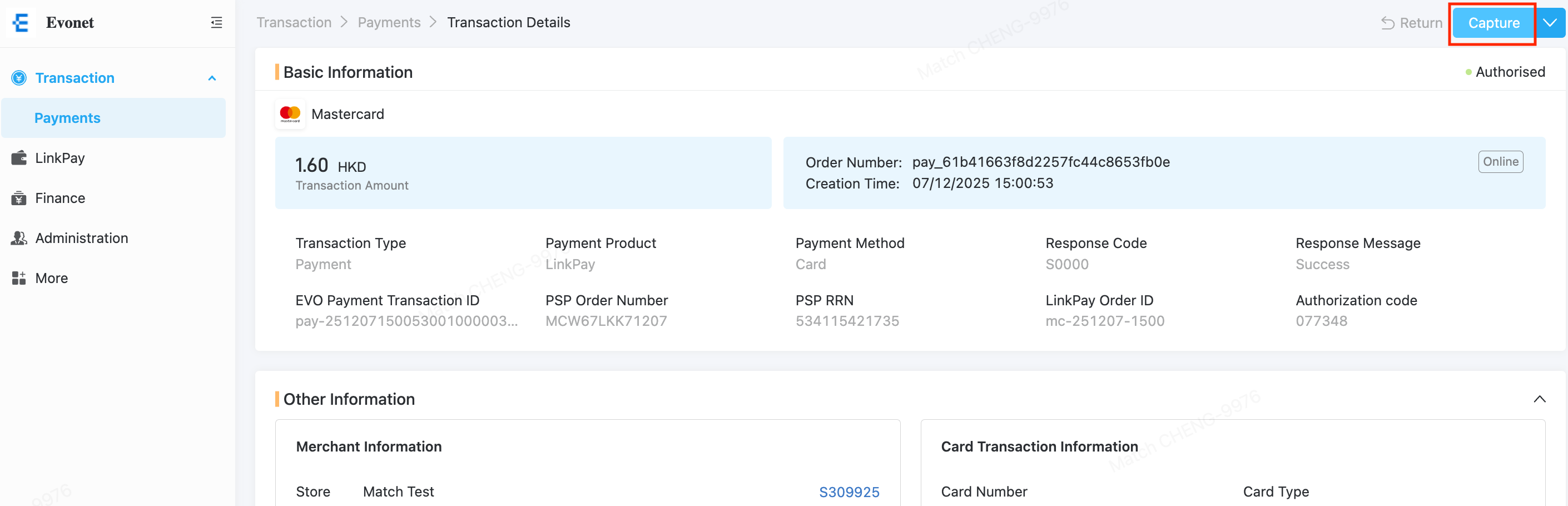
A confirmation dialog box will be shown, it is also possible to carry out Partial Capture. Description should be provided to indicate the reason or description of this Capture.
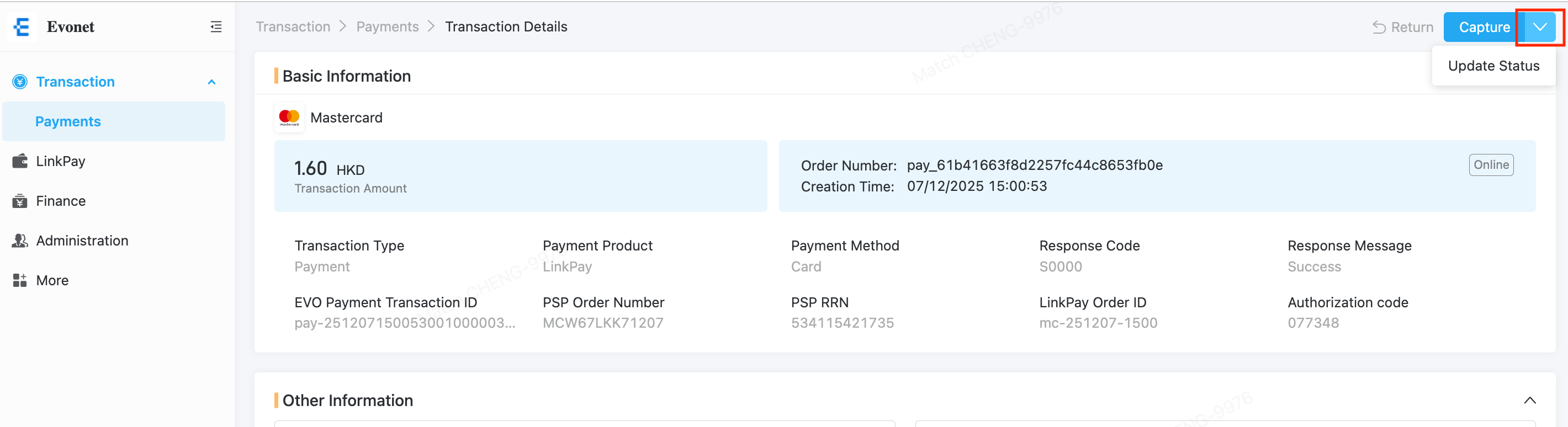
To Cancel an Authorised transaction at the Portal, click the small Arrow button next to the Capture at the top-right hand corner. An Update Status will be shown:
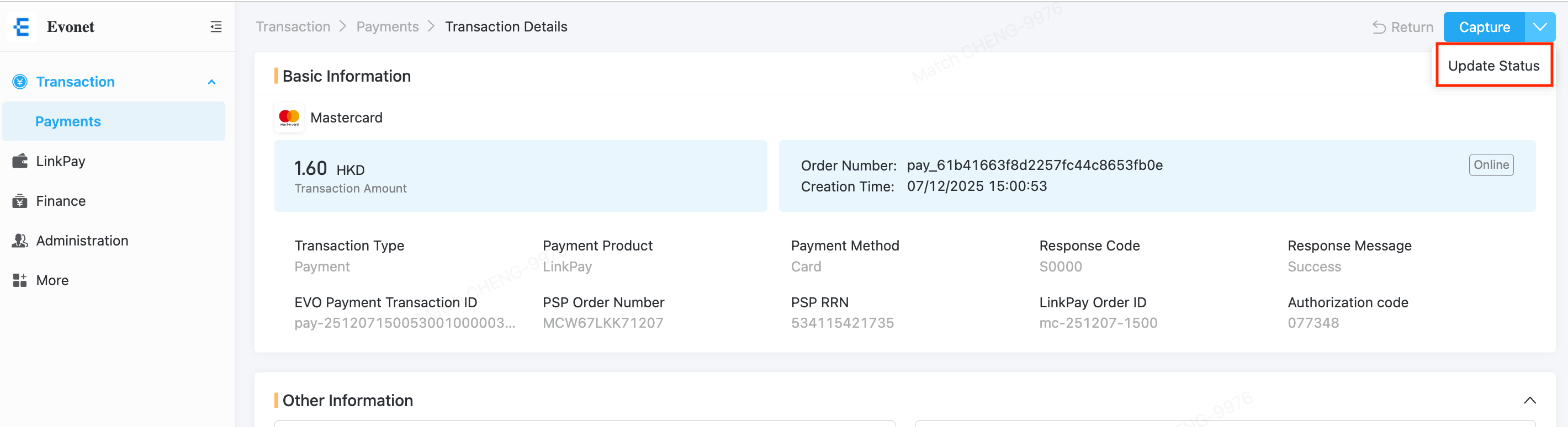
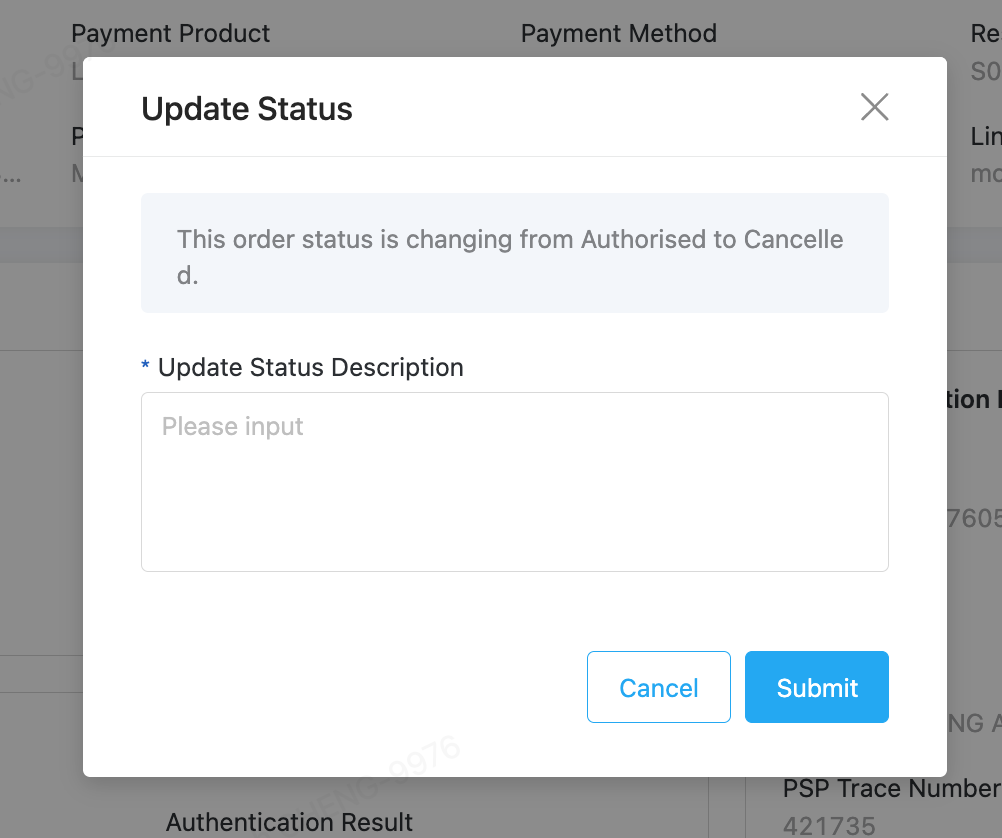
Click the Update Status button, a confirmation box will be shown:
Description should be provided to indicate the reason or description of this Cancel.
Updated 10 days ago