

Dashboard Overview
The Dashboard serves as your central command center in the Evonet Merchant Portal, offering real-time visibility into sales metrics, transaction volume, active stores, payment method performance, and exchange rates.
Time Period & Currency Controls
At the top of the dashboard, customize your analytics view using quick time presets or currency filters:
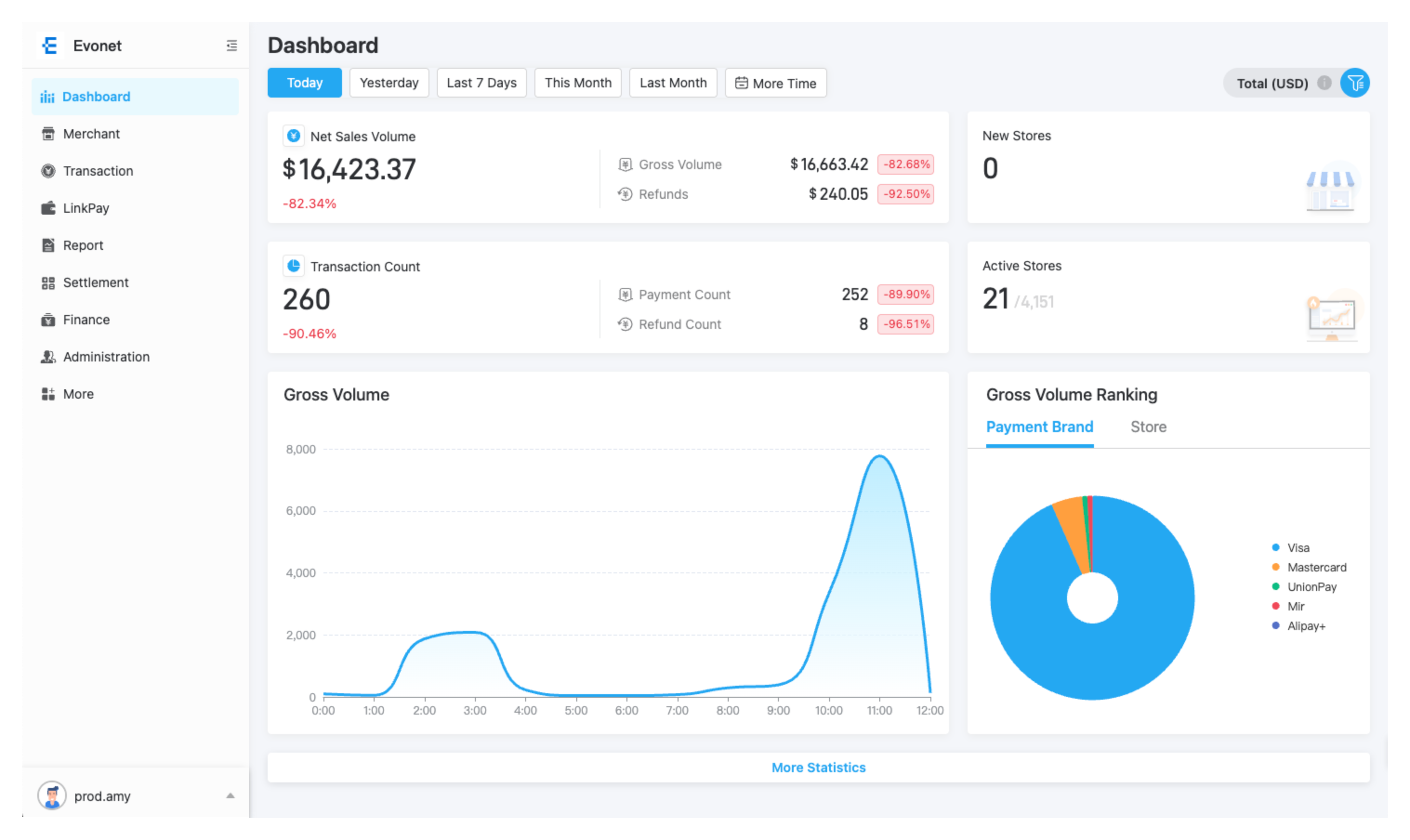
- Time Presets: Click Today, Yesterday, Last 7 Days, This Month, or Last Month to dynamically update all dashboard metrics.
- Custom Date Range (More Time): Click More Time to open the calendar picker and set custom start and end dates.
- Currency Selector: Click the Total (USD) dropdown in the top-right corner to switch your dashboard display currency (e.g., AED, ARS, CAD, CHF, CNY, EUR, etc.).
Key Performance Indicators
The top section displays real-time high-level transaction metrics and growth percentages compared to previous periods:
| Metric Card | Description |
|---|---|
| Net Sales Volume | Total net transaction processing amount (Gross Volume minus Refunds). Shows breakdowns for Gross Volume and Refunds alongside percentage trends. |
| Transaction Count | Total number of payment attempts. Shows a breakdown of Payment Count vs. Refund Count with percentage trends. |
| Active Stores | Displays the number of active stores currently processing transactions out of your total store count. |
Gross Volume Trend Chart & Brand/Store Ranking
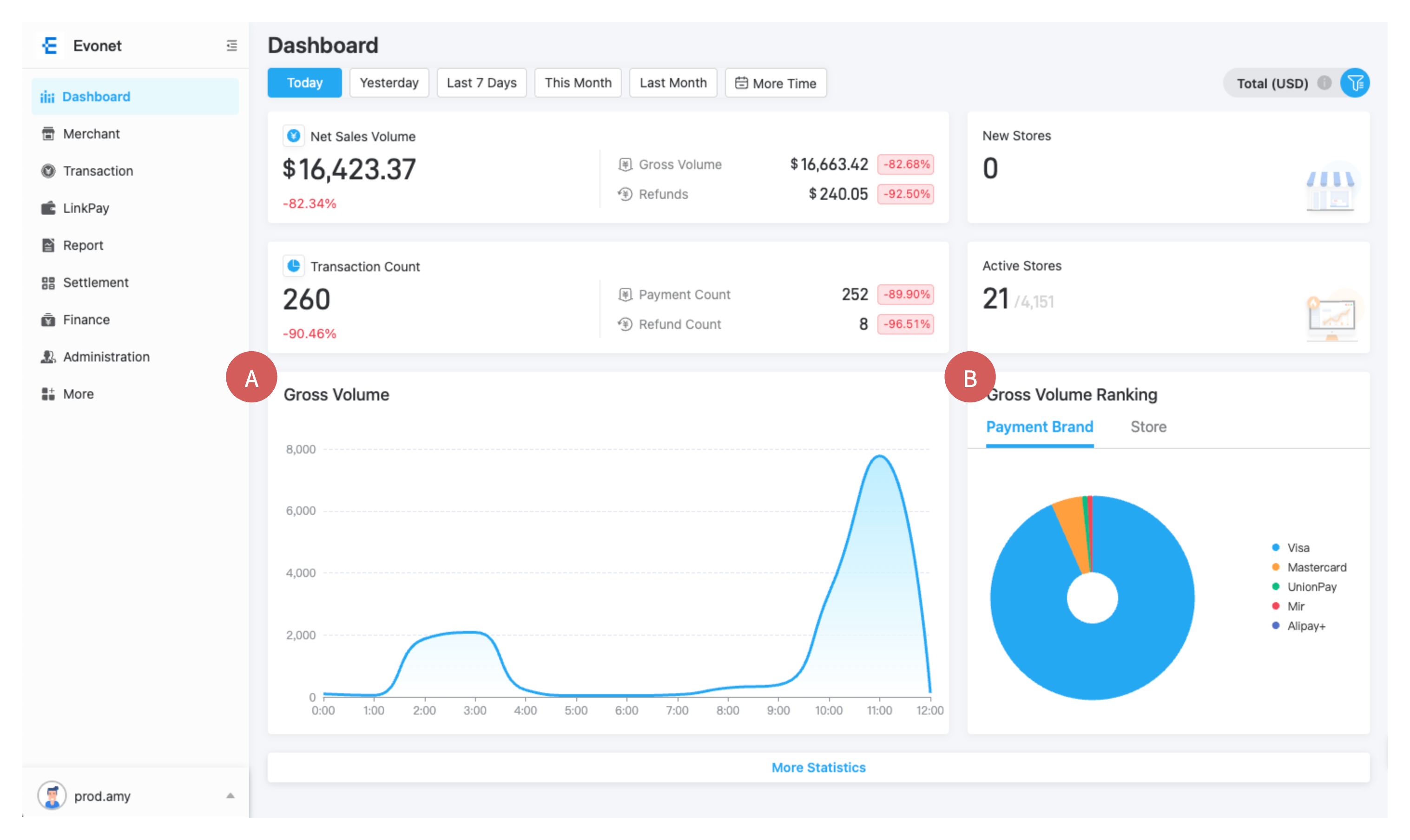
Gross Volume Trend Line Chart
- Hover over any data point on the interactive line chart to inspect hourly or daily volume amounts.
Gross Volume Ranking
Toggle between the tabs on the right side of the chart:
- Payment Brand Tab: Displays a pie chart breakdown of sales volume by card schemes and e-wallets (e.g., Visa, Mastercard, Alipay, DANA, Touch 'n Go, Naver Pay).
- Store Tab: Displays a horizontal bar chart ranking sales volume by individual store locations.
Advanced Analytics (More Statistics)
Click More Statistics at the bottom of the main dashboard page to enter the detailed Data Analysis portal.
The Data Analysis page provides 4 specialized analytics tabs:
Tab 1: Gross Volume Ranking
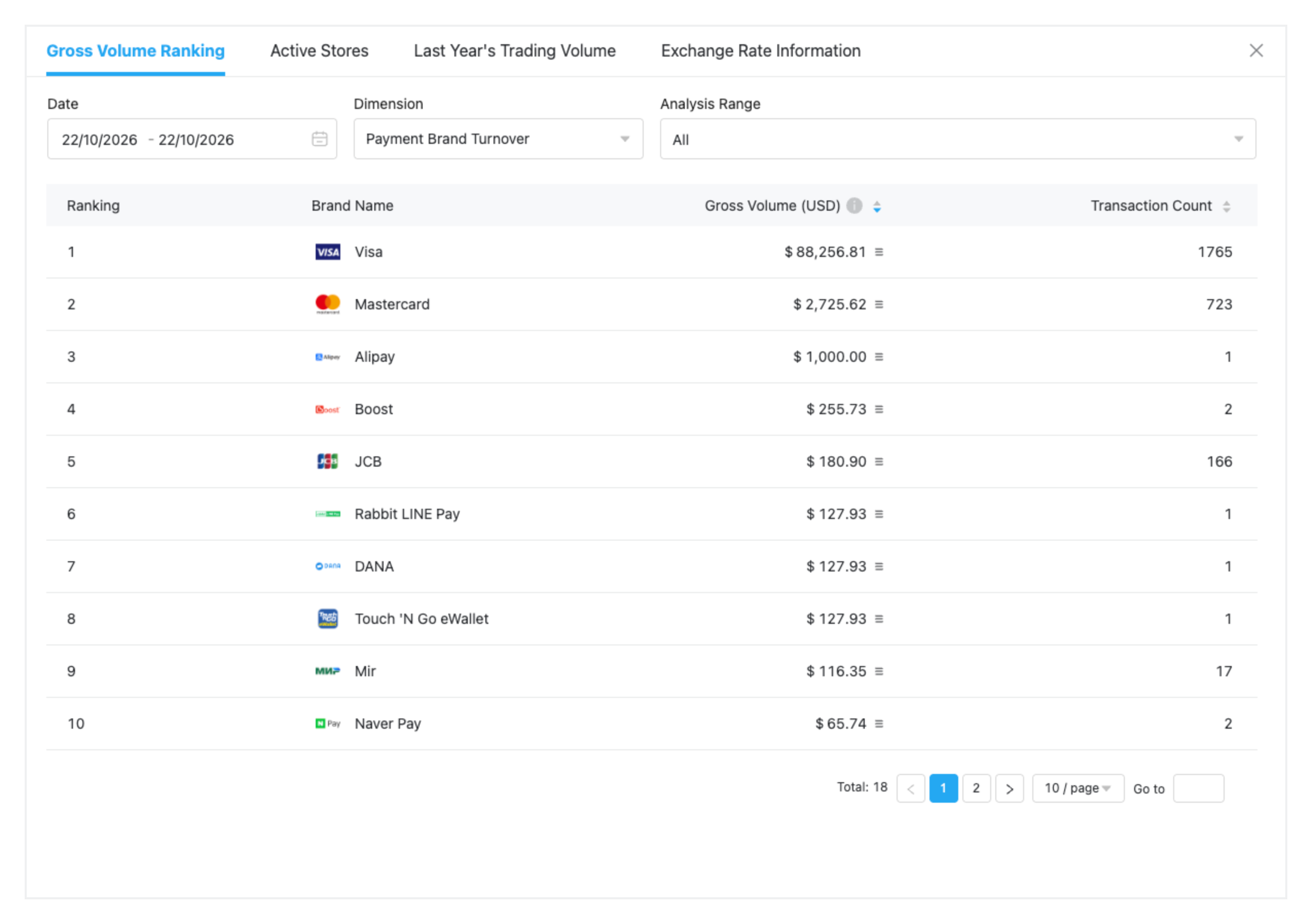
- View an itemized table ranking payment methods or store channels.
- Dimension Selector: Filter rankings by Payment Brand Turnover, Merchant Turnover, or Store Turnover.
- Analysis Range: Filter by All or custom date ranges.
- Table Metrics: Displays Rank, Brand/Store Name, Gross Volume, and Transaction Count.
Tab 2: Active Stores
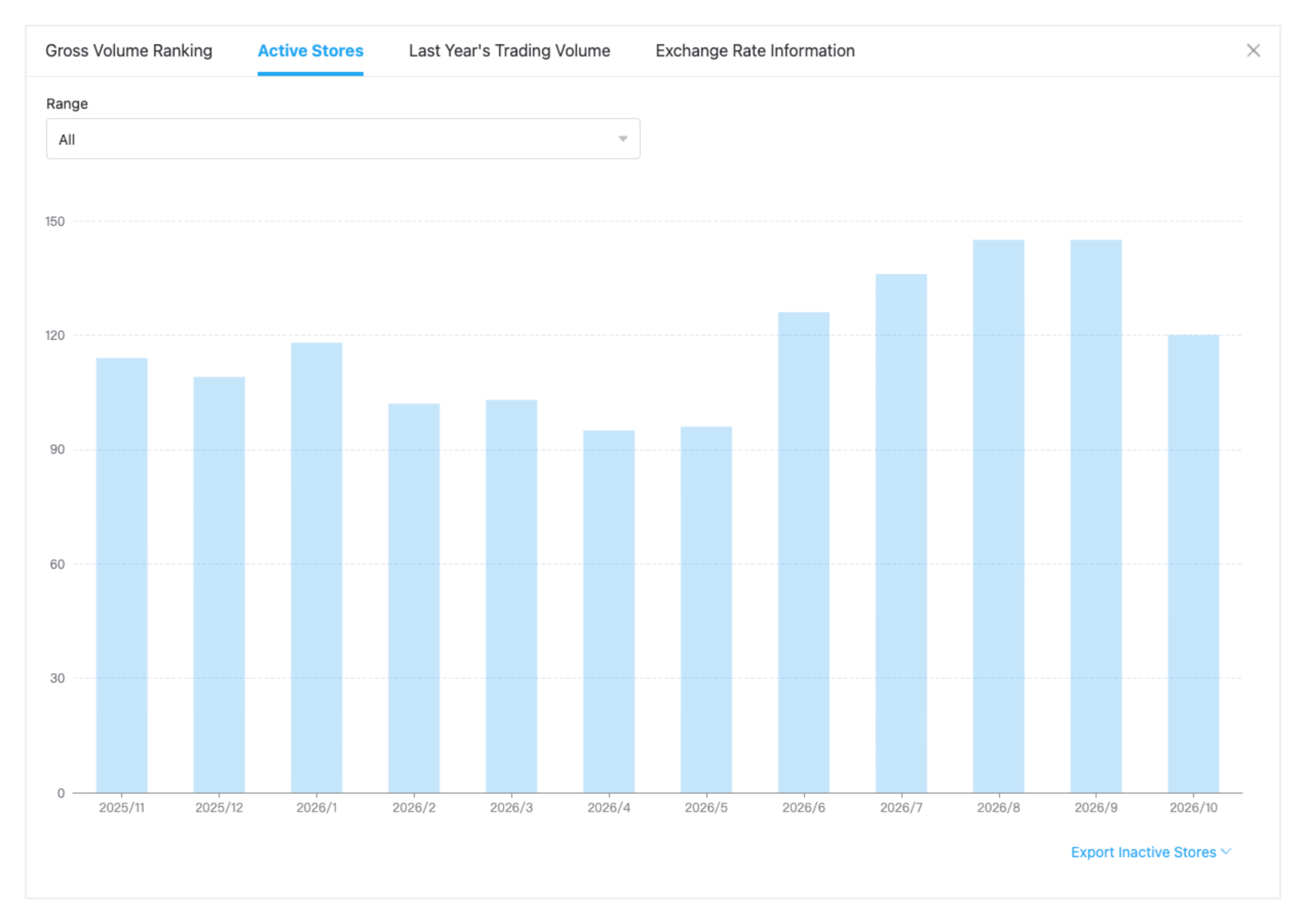
- View a bar chart displaying active store counts across historical months.
- Click Export Inactive Stores at the bottom right to download a CSV list of non-processing store accounts.
Tab 3: Last Year's Trading Volume
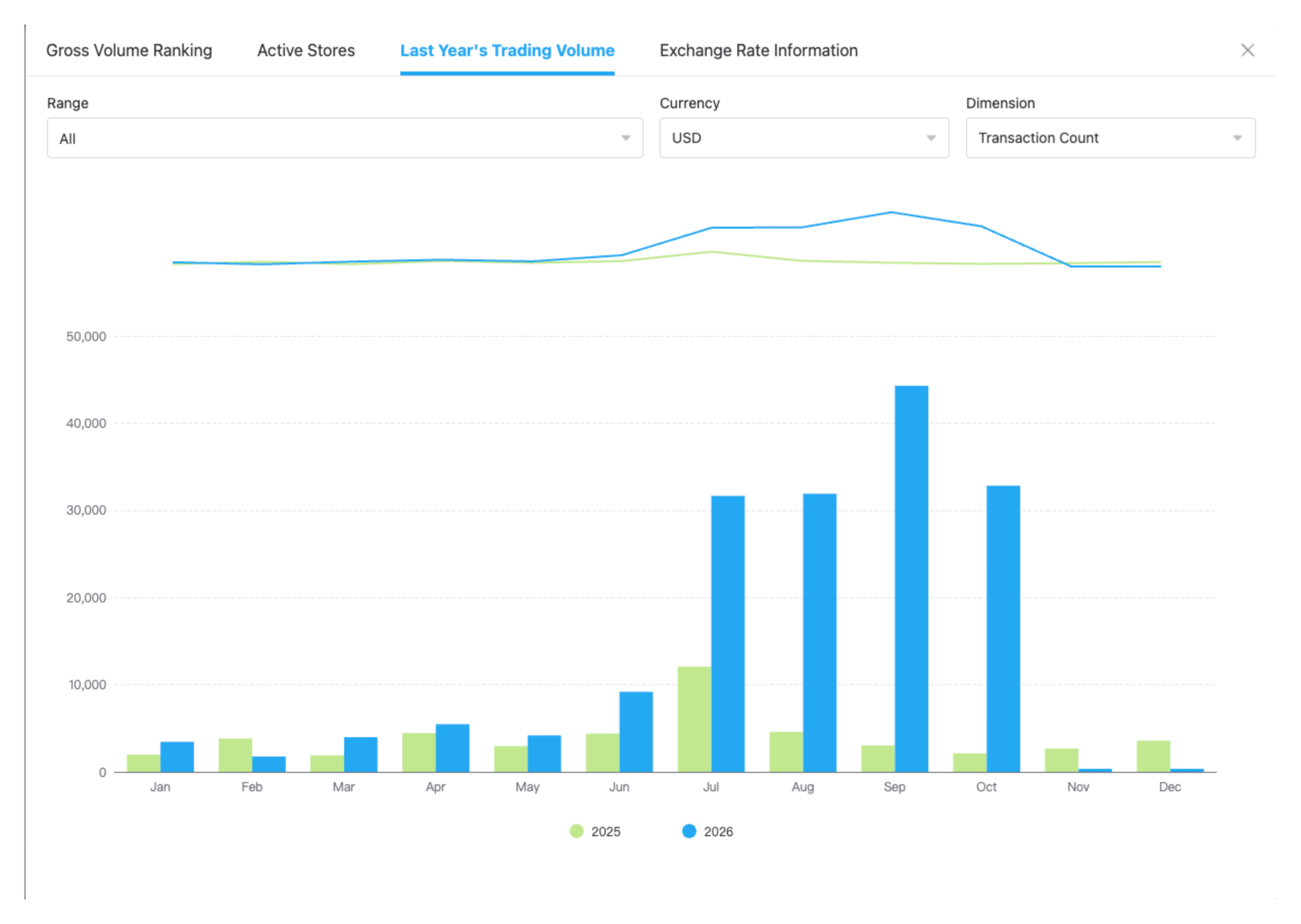
- Compare year-over-year processing performance broken down by monthly transaction counts and total sales volume.
- Customize view dimensions by Transaction Count or Transaction Amount.
Tab 4: Exchange Rate Information
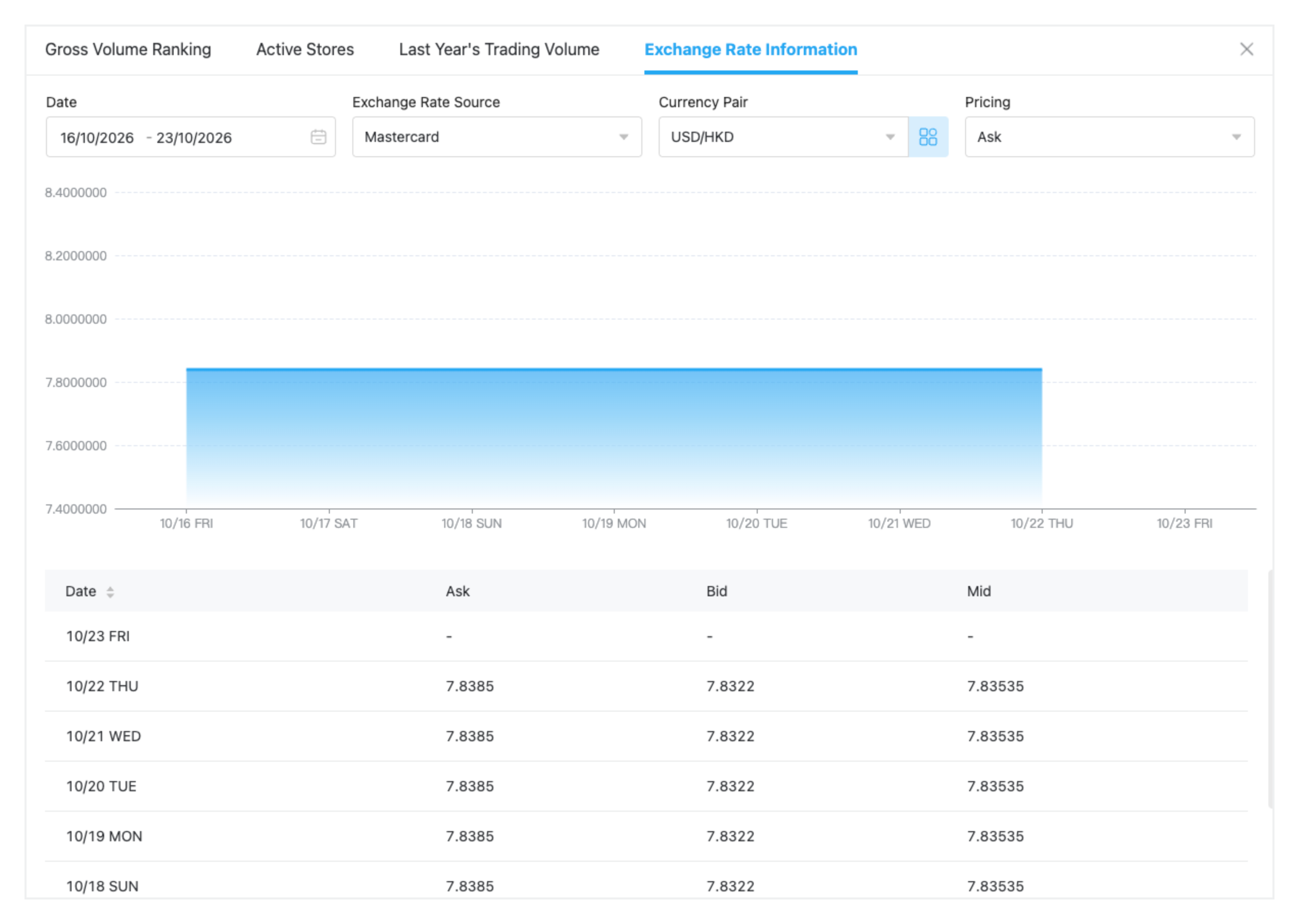
- Track real-time and historical foreign exchange rates().
- Select specific Exchange Rate Sources (e.g., Mastercard), Currency Pairs (e.g., USD-HKD), and Pricing Types (Ask, Bid, or Mid).
- Hover over the interactive graph to view date-specific FX rate movements and review daily rate history in the underlying table.
Updated about 2 hours ago
Did this page help you?