

Getting Started
Welcome to the Evonet Merchant Portal. This guide walks you through setting up your merchant account, completing your initial sign-in, and securing your Production API keys to begin accepting payments.
-
Activating your account
Getting started with Evonet begins when you reach out to our team via the official Contact Us page on our website. Once connected, our Customer Support team creates your merchant profile and initiates the account setup.Step 1. Open Your Welcome Email
Check your inbox for an official activation email titled: Welcome to onboard Evonet Portal Service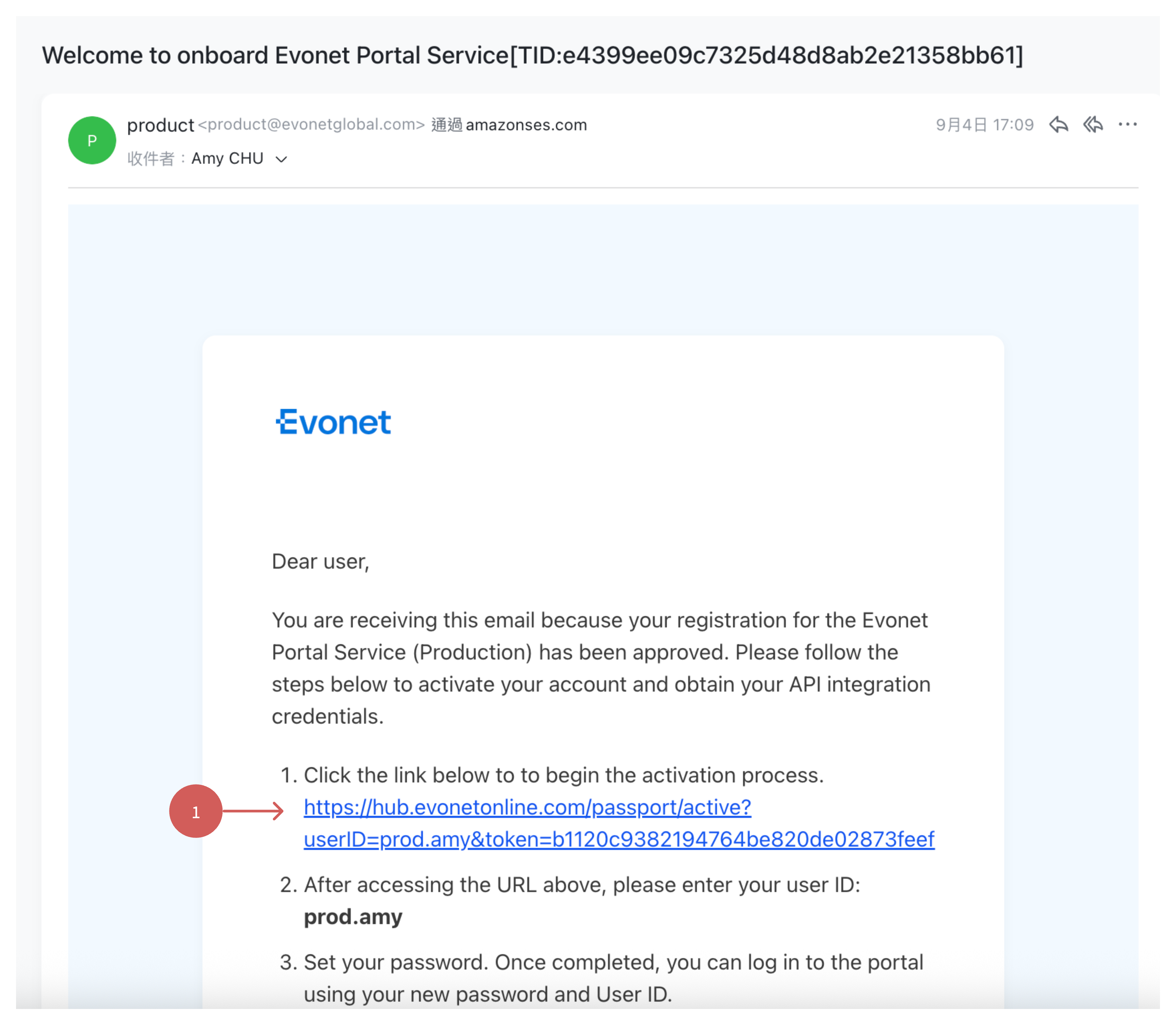
Step 2. Complete Account Registration
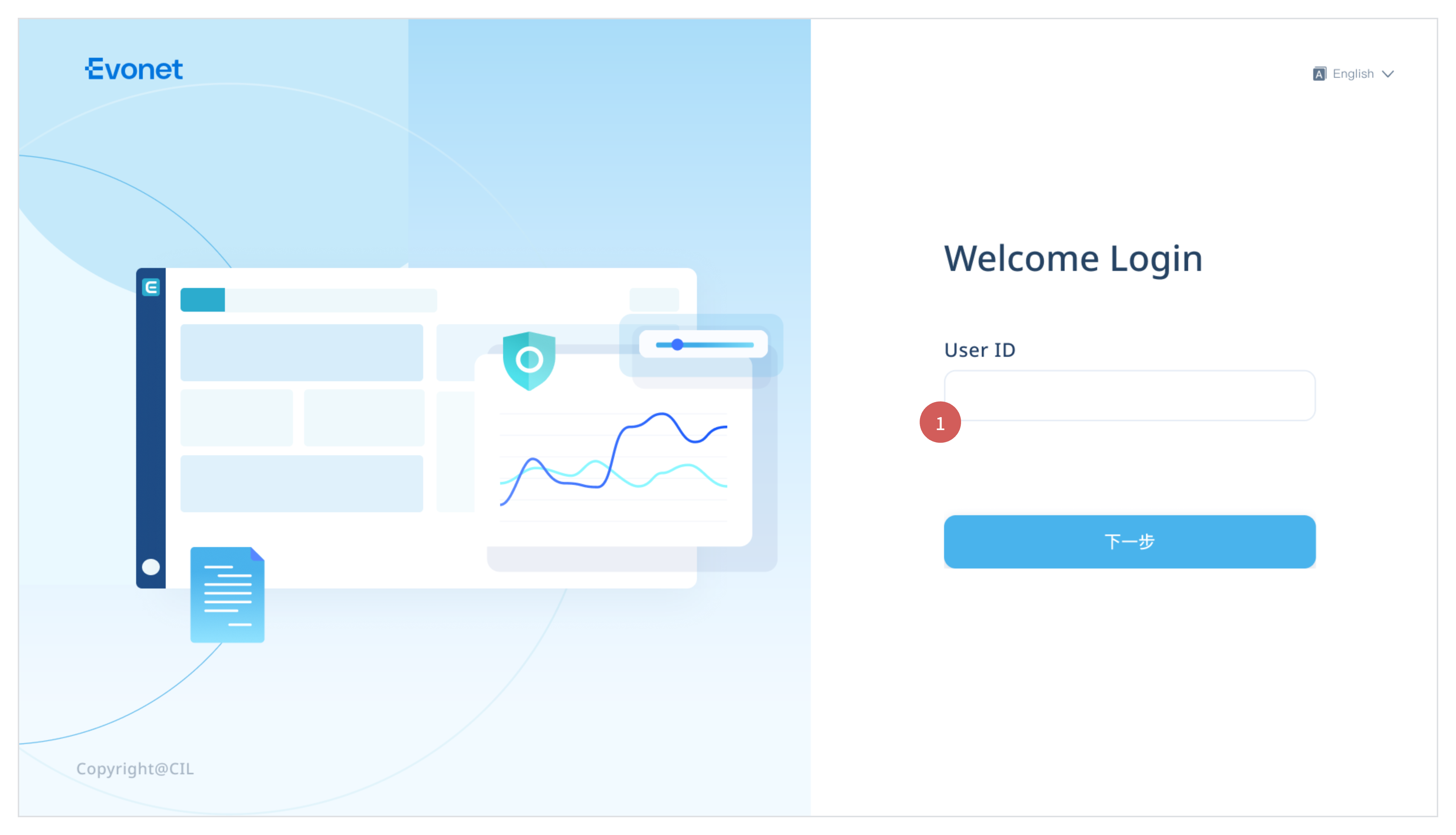
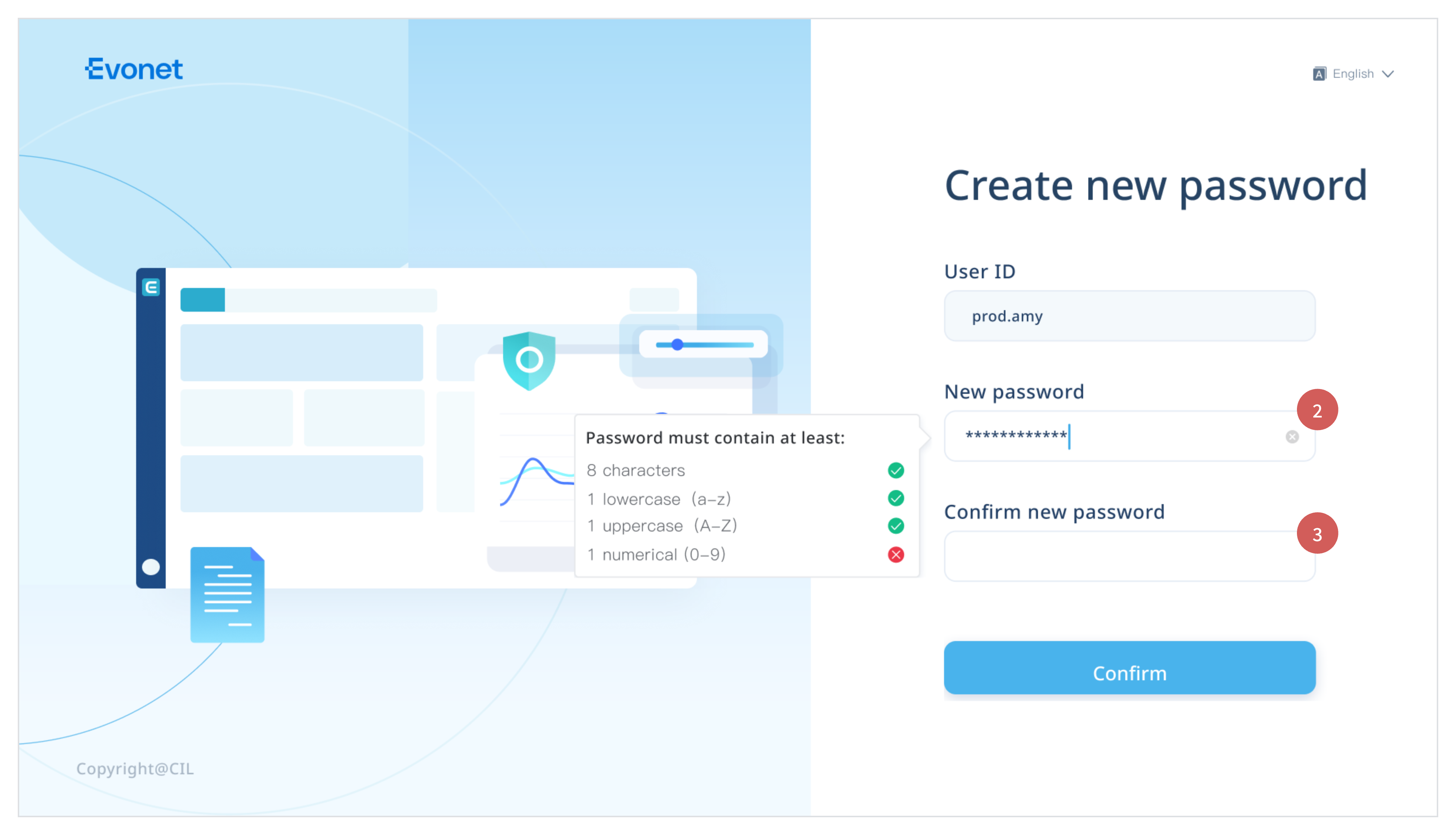
On the registration page:
- Enter your assigned User ID.
- Set up a secure Password meeting our complexity requirements.
- Confirm your password and submit the form.
Step 3. Sign In to Evonet Portal
Navigate to the Evonet Merchant Portal login page and log in using your newly created User ID and Password.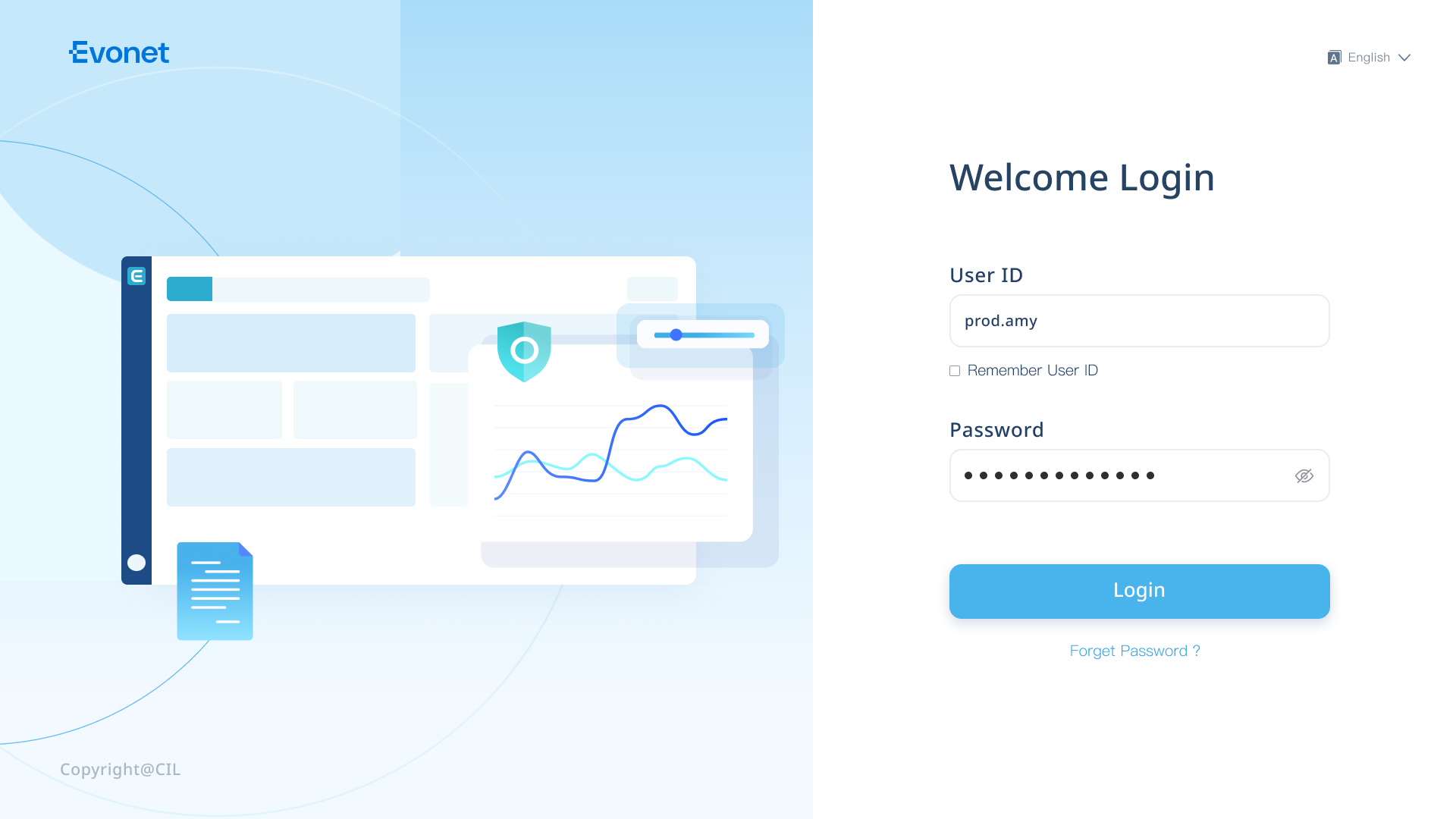
Step 4: Security Setup (MFA)
Download Google Authenticator App:
- For iOS users, log in to the App Store and search for “Authenticator" to download.
- For Android users, log in to the app store or use a mobile browser to search for “Google Authenticator" to download.
After completing the download, open the Google Authenticator app and click on the "+" sign.
Choose Scan QR Code and your mobile phone will remember your account.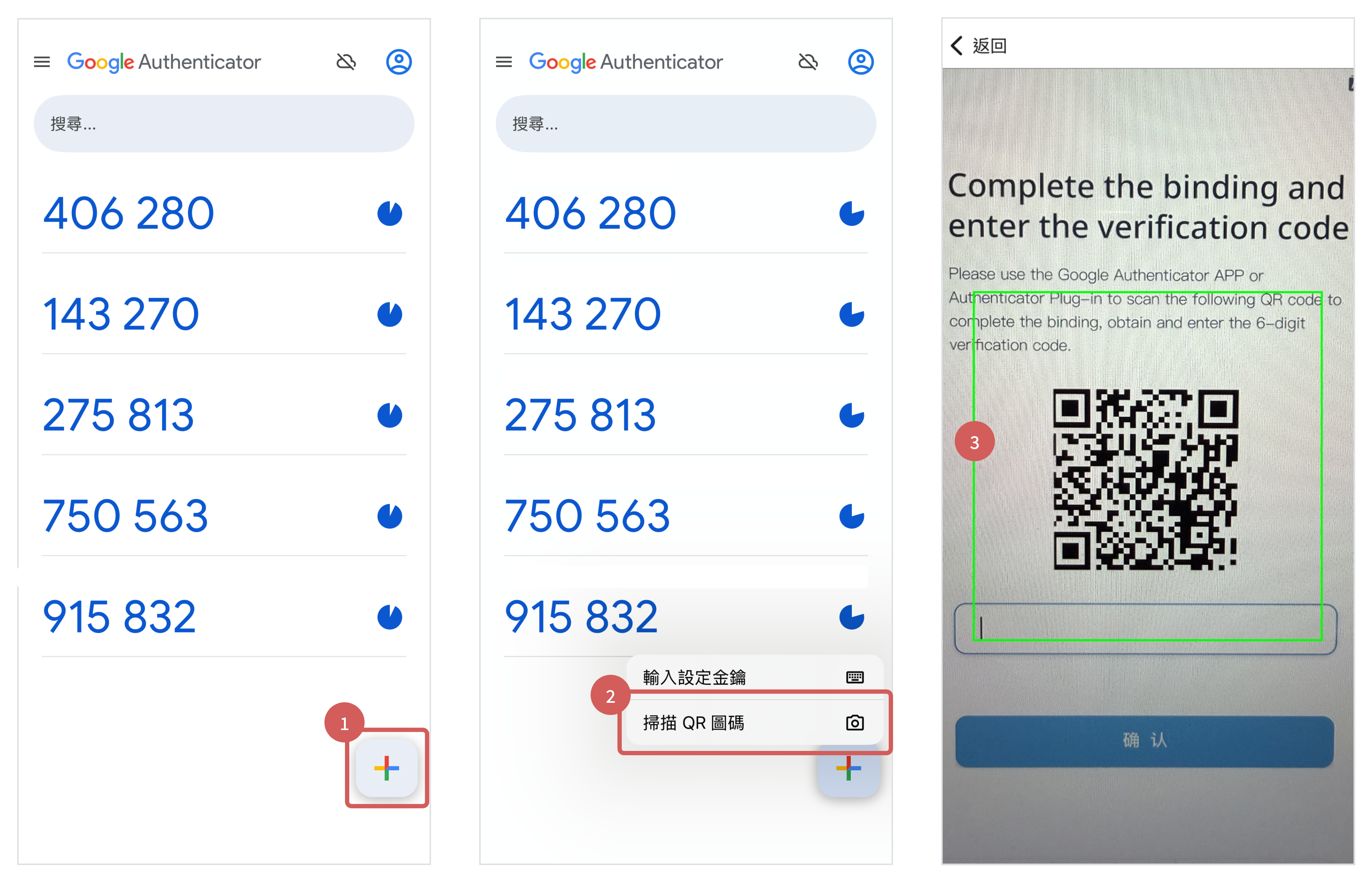
Next time when you need to log in the portal, you will need to open the authentication app and enter the corresponding 6-digit code into your portal.
-
Exporting Your Production API Credentials
Once logged into the Evonet Merchant Portal, follow these steps to generate and retrieve your live API credentials for integration.
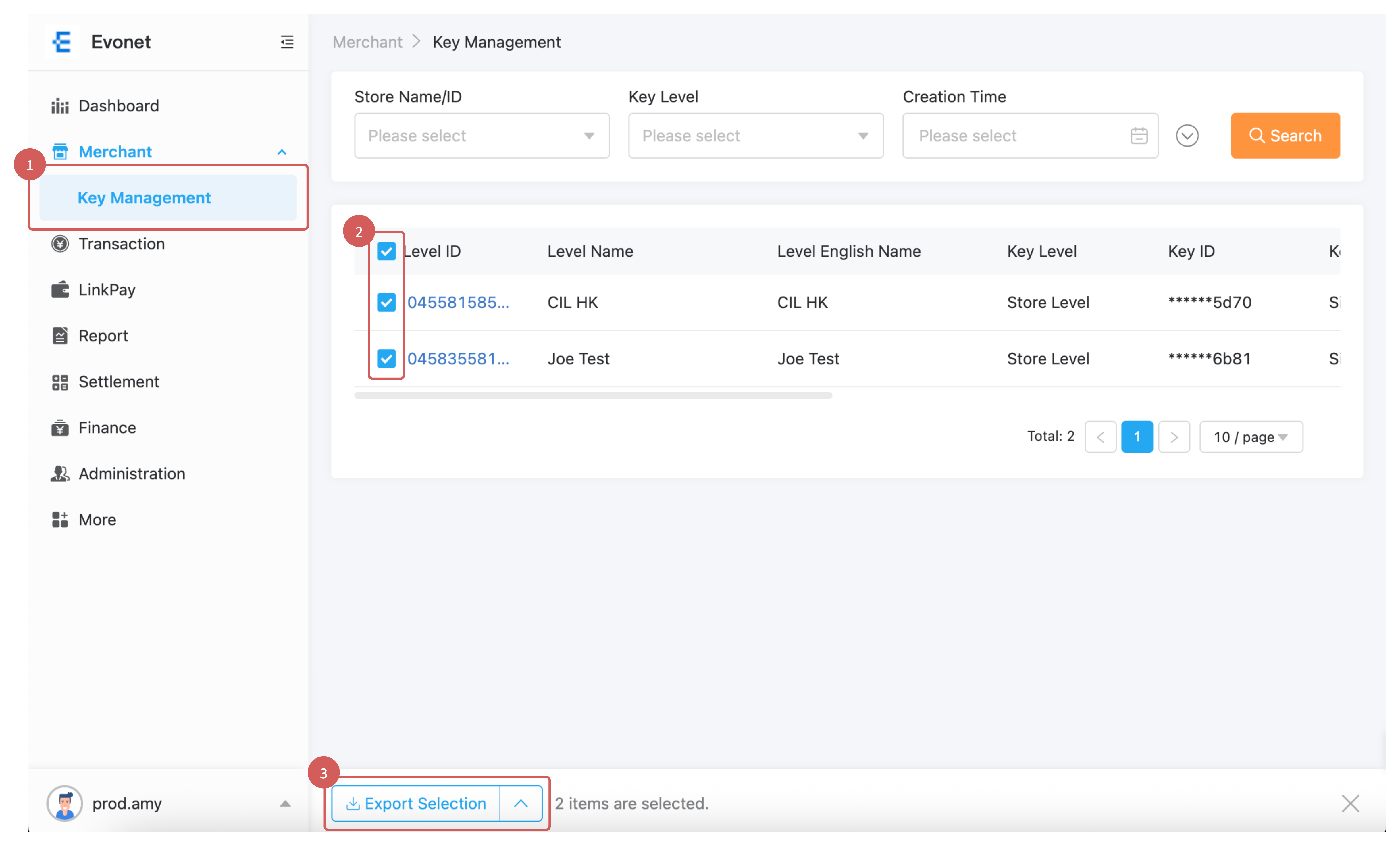
Step 1. Navigate to Key Management
Step 2. Select your store
-
Locate and select the relevant store record for your business entity from the store list.
-
Find the entry marked Signature Key associated with your selected store record.
Step 3. Export your keys
-
Click the Export Selection button to securely download your Production API keys file to your local device.
Step 4. Accessing credentials & endpoint information
- After downloading your key file, open it to locate your live production integration credentials:

-
- Support & Assistance
If you run into any issues during the onboarding process or need a new activation link generated, please reach out to your assigned Evonet Customer Support Representative or contact our team through the support desk in your portal.
Updated 21 days ago