

Shoplazza Plugin Integration Step
This document walks you through the complete workfow - from obtaining API credentials and installing the plugin to configuraing production environment parameters and going live. Please follow each step in order to ensure your configuration is completed correctly.
🌐 Language Switch / 语言切换
1. Prerequisites
Before you begin configuration, please confirm that you meet the following requirements:
- You have an active Shoplazza store with administrator privileges.
- You have applied to Evonet and had your Merchant Account activated, and have received the corresponding API credentials.
- Your store's operating region supports the Evonet Payment Gateway.
2. Onboarding Process
2.1 Obtain API Credentials
Log in to your Evonet Merchant Dashboard to botain production environment credentials:
| Credential Field | Description |
|---|---|
| Key ID | Your unique merchant identifier, corresponding to the merNO field in the plugin |
| Key | The key used for request signing, corresponding to the signKey field in the plugin |
2.1 Install the Evonet Payment Gateway Plugin
-
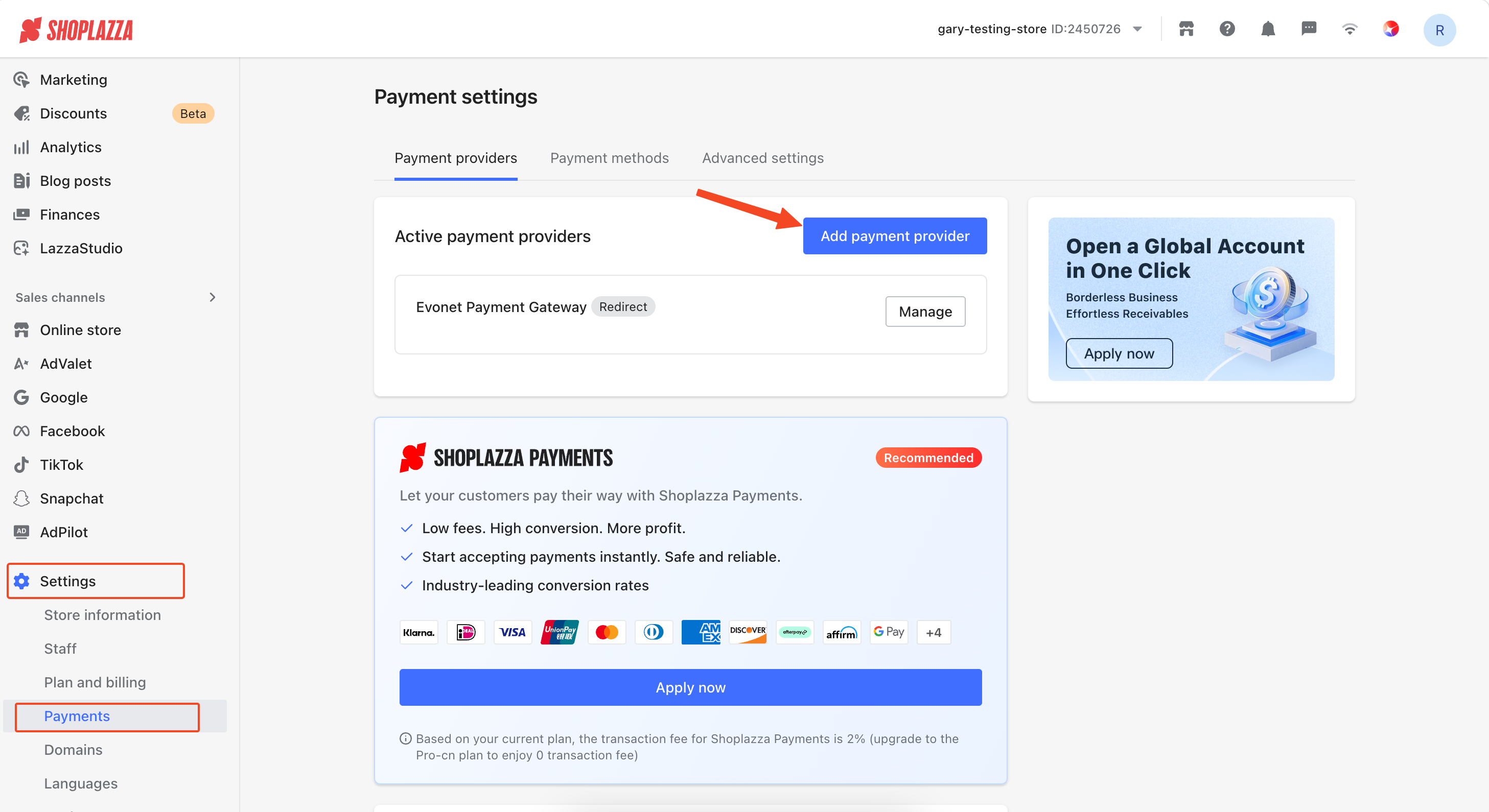
Log in to your Shoplazza store admin panel. In the left navigation bar, click Settings > Payments > Add payment provider.
-
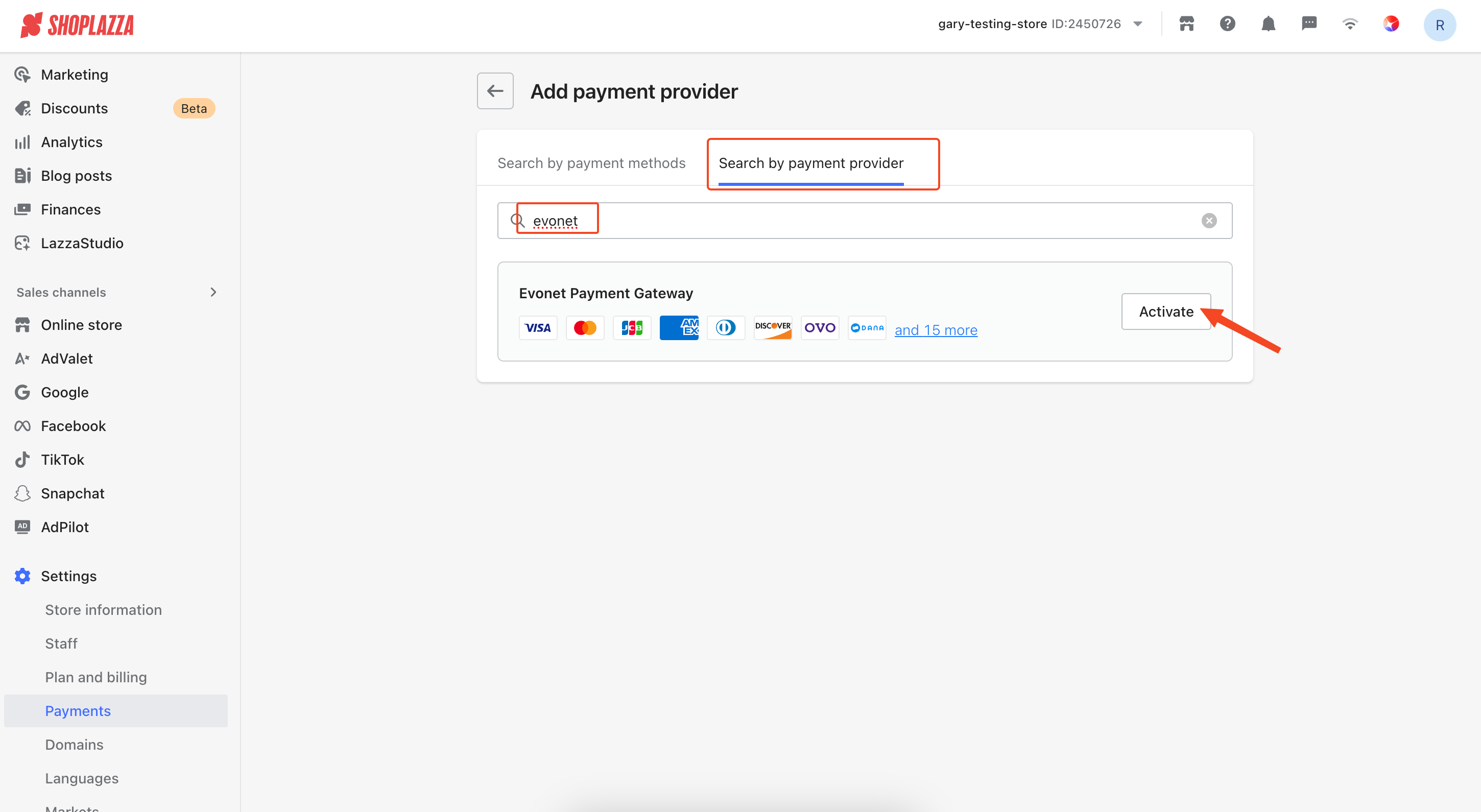
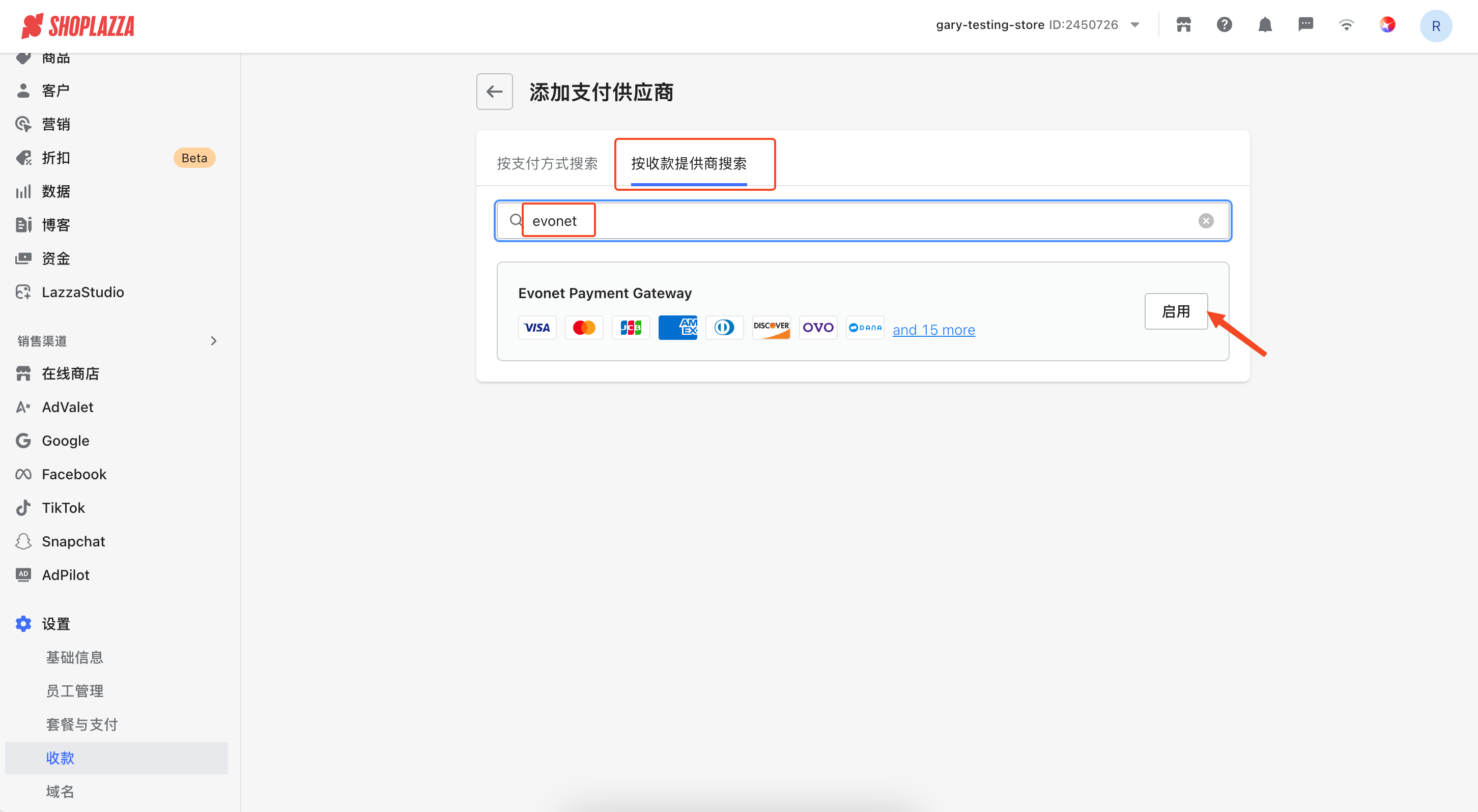
Search for "Evonet Payment Gateway" in the By Payment Provider and click Activate.
-
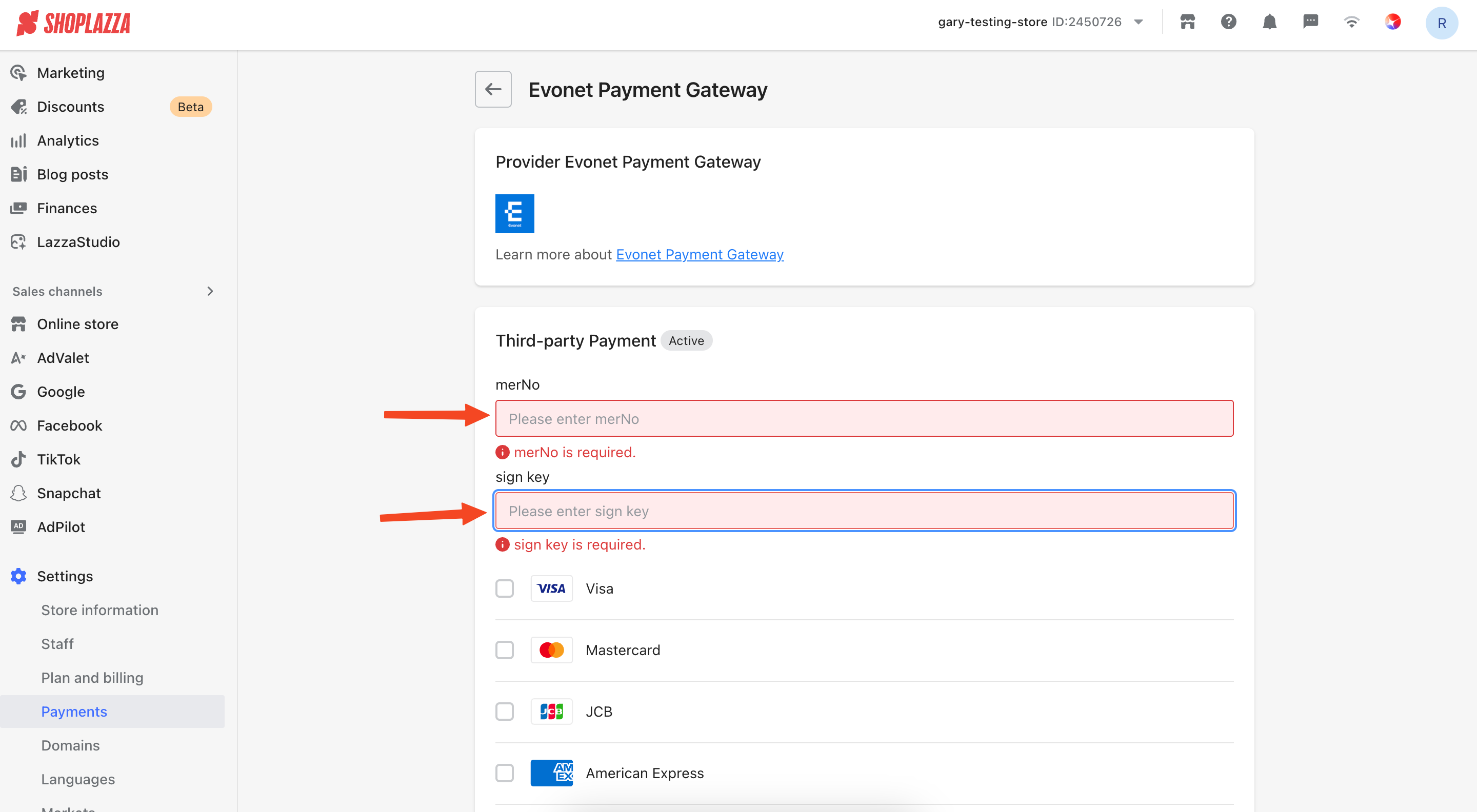
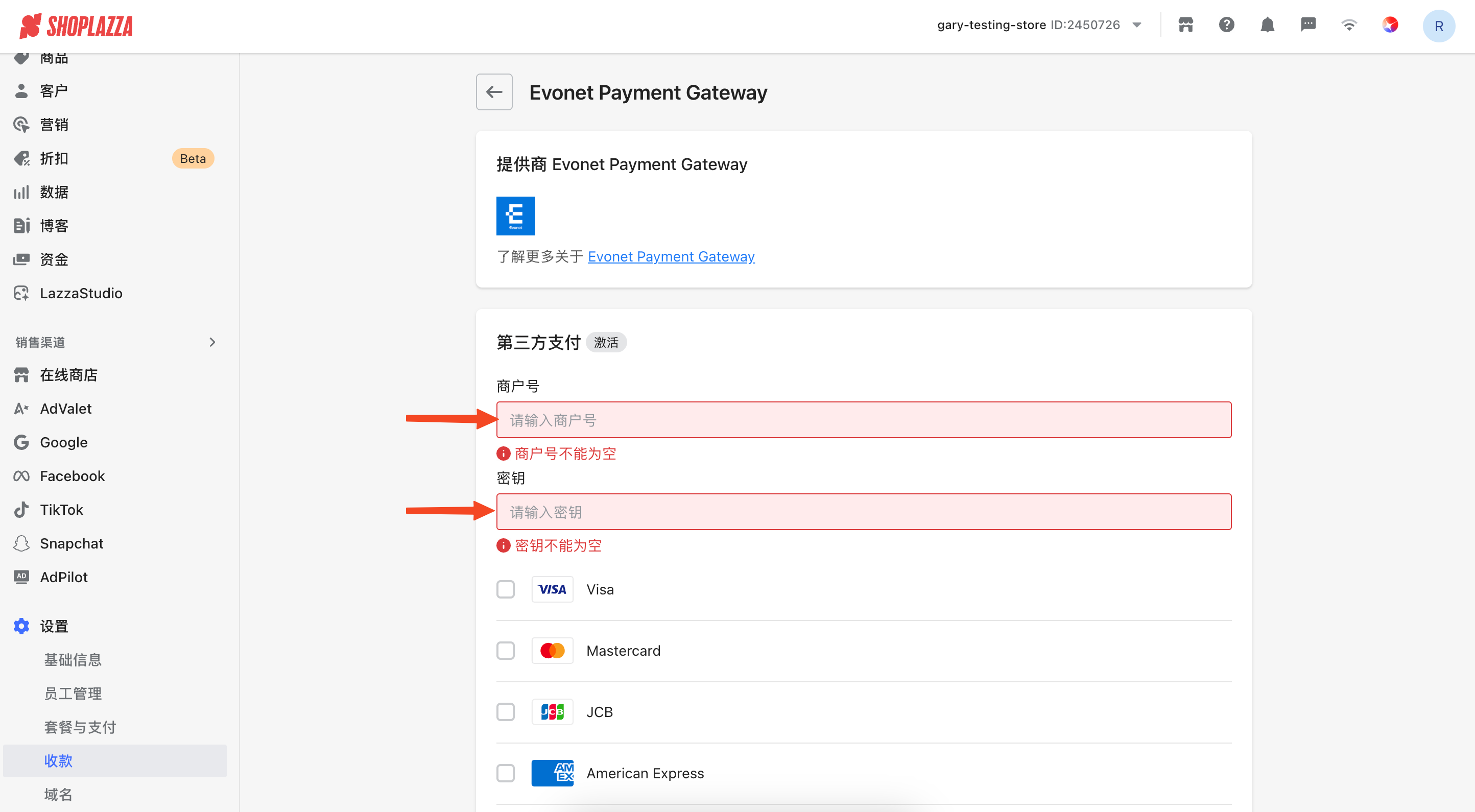
On the Plugin's settings page, enter your production environment API credentials and save.
NOTE
- The payment method does not need to be selected at this step, as it will be displayed in the checkout.
- The merNo is the KeyID in the API credentials, and the sign key is the Key in the API credentials.
3、FAQ
Q1: The Evonet payment option is not visible on the checkout page?
Answer: Go to Settings > Payments and confirm that the status of Evonet Payment Gateway is Activate.
Q2: API credential validation fails or returns an error?
Answer: Incomplete credential copy: When pasting, ensure there are no extra leading/trailing spaces or line breaks. It is recommended to paste into a plain text editor first, then copy again.
Q3: How do I process a refund?
Answer: On the corresponding order detail page in the Shoplazza admin panel, click the Refund button. The system will automatically initiate a refund request through the Evonet Payment Gateway. Both full and partial refunds are supported.
一、前置条件
开始配置前,请确认您已满足以下条件:
- 拥有一个已启用的 Shoplazza 商店,且具备管理员权限。
- 已向 Evonet 申请并开通 商家账户,取得对应的 API 凭证。
- 确认您的商店营运地区支持 Evonet Payment Gateway。
二、开通流程
2.1 取得 API 凭证
登入您的 Evonet 商户后台 获取生产环境的凭证:
| 凭证字段 | 说明 |
|---|---|
| Key ID | 您的唯一商户识别码,对应插件中的 商户号 字段 |
| Key | 用于请求签章的密钥,对应插件中的 密钥 字段 |
2.1 安装 Evonet Payment Gateway Plugin
-
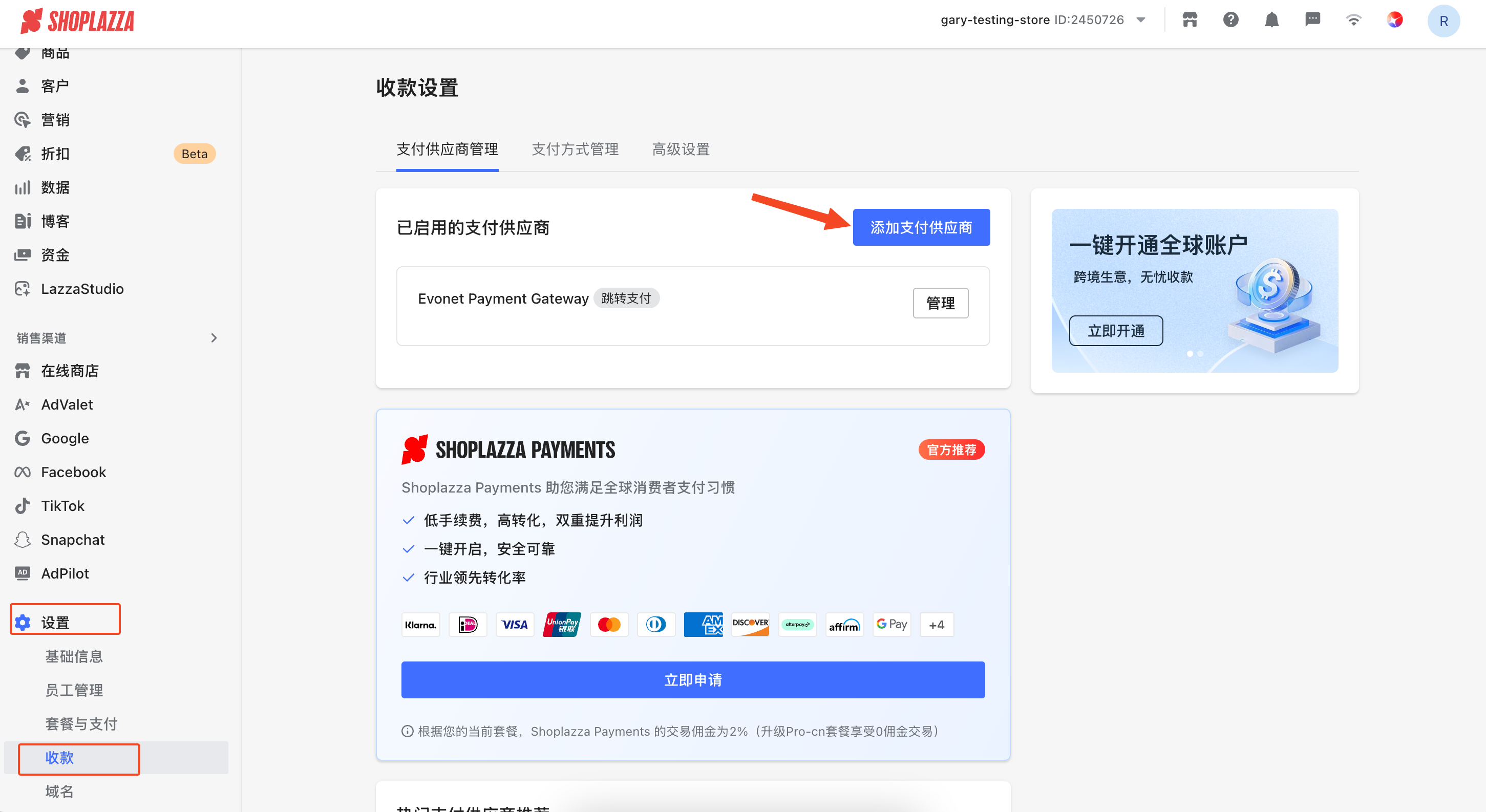
登录您的 Shoplazza 商店管理后台。在左侧导览列中,点击 设置 > 收款 > 添加支付提供商。
-
在 按收款提供商搜索 中搜索,“Evonet Payment Gateway“ 并点击 启用。
-
在 Plugin 的设定页面,输入您的 正式环境 API 凭证并保存
三、常见问题
Q1:结账页面看不到 Evonet 付款选项?
答:前往 设置 > 收款,确认 Evonet Payment Gateway 的状态为 已启用
Q2:API 凭证验证失败或报错?
答:凭证复制不完整:复制时请确保没有多余的前后空格或换行符号。建议使用纯文字编辑器贴上后再复制一次。
Q3:退款操作如何进行?
答:在 Shoplazza 后台的对应订单详情页中,点击 退款 按钮,系统将透过 Evonet Payment Gateway 自动发起退款请求。支持全额退款与部分退款。
Demo Zone
Updated 3 months ago